 Sup!
Sup!Read responses and send reminders
See who answered, read responses by day or by person, and remind people who haven't answered.
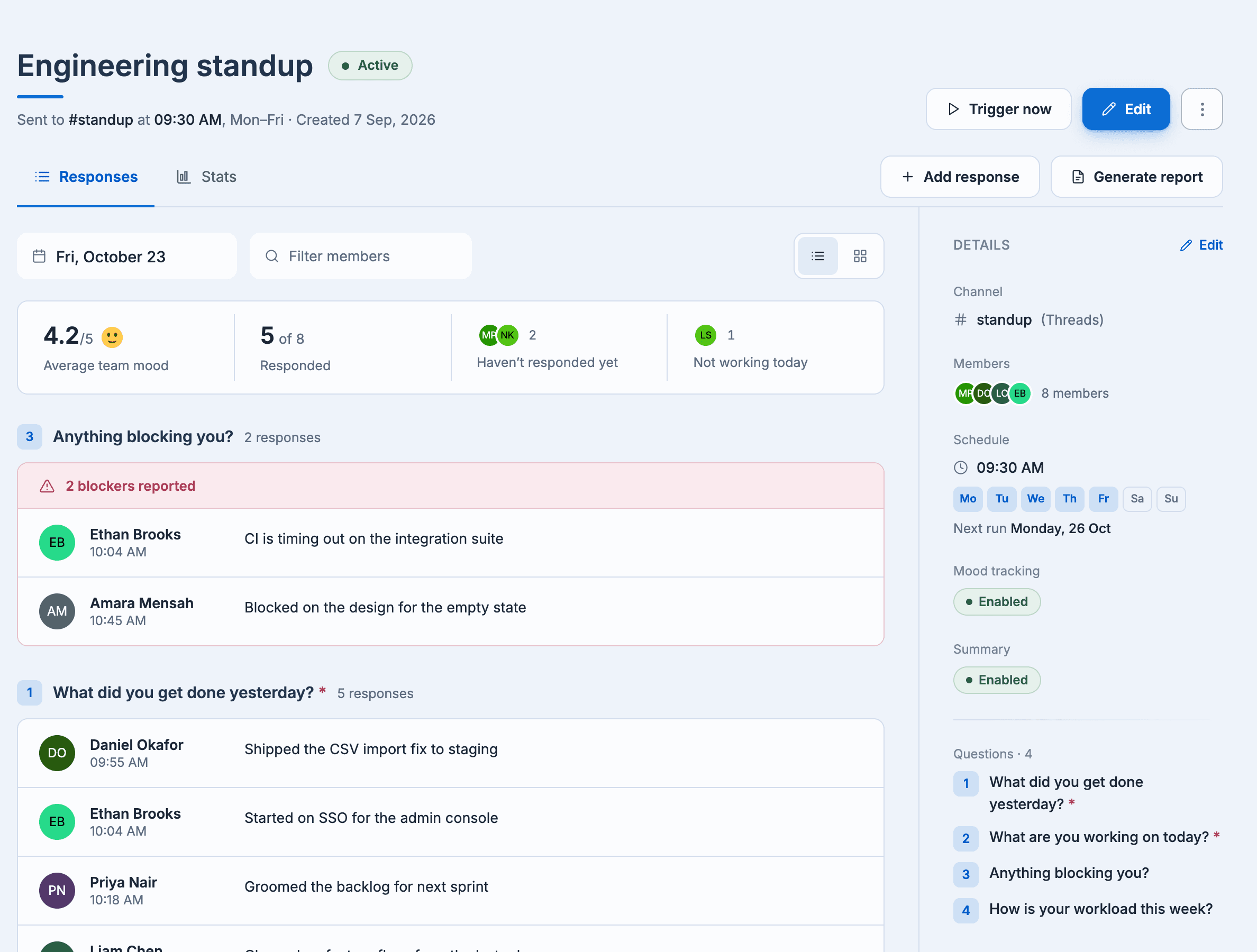
Open a follow-up from the Follow-ups list. Its page has two tabs, Responses and Stats, with a Details panel on the side. On narrow screens, Details is a third tab.
The Details panel
The panel lists the follow-up's Channel, Members, Schedule (with the next run date), Mood tracking, Summary and Questions. Select any of them to edit that part.
Responses
The Responses tab shows one day at a time. Pick the day with the date picker.
- List view groups answers by question. The blocker question shows how many blockers were reported that day.
- Card view shows one card per member.
- Filter members narrows it to specific people.
Above the responses:
- Average team mood, if mood tracking is on. Moods submitted in the last hour aren't counted yet.
- Responded: how many members have answered.
- Haven't responded yet: who is still pending. Select it to see the list and send reminders.
- Not working today: who said they're off, if that option is on.
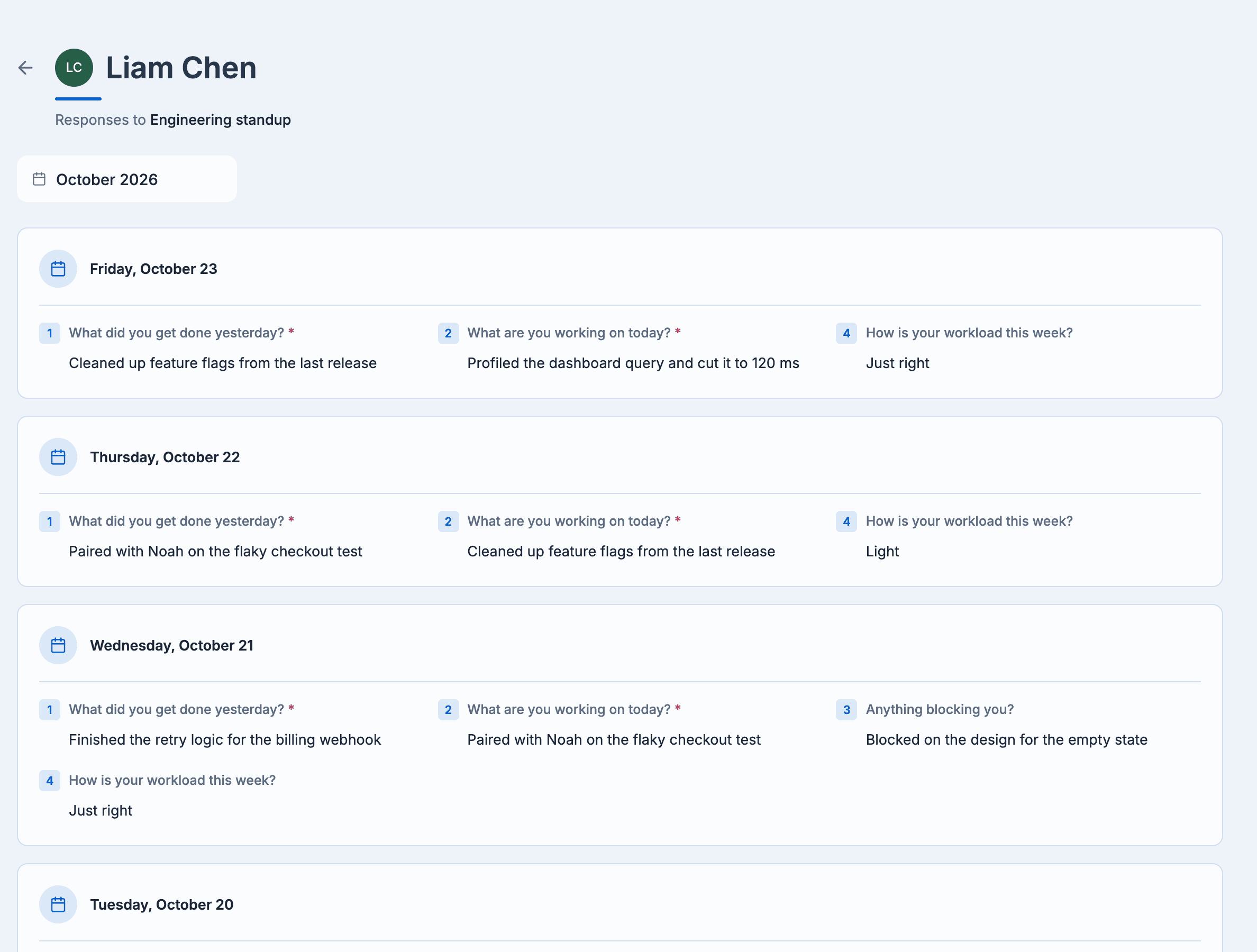
To see everything one person has answered, select them in the members list. Their page shows their responses month by month.
Send reminders
On the Responses tab, select Haven't responded yet.
Select Remind next to a person, or Remind all at the bottom.
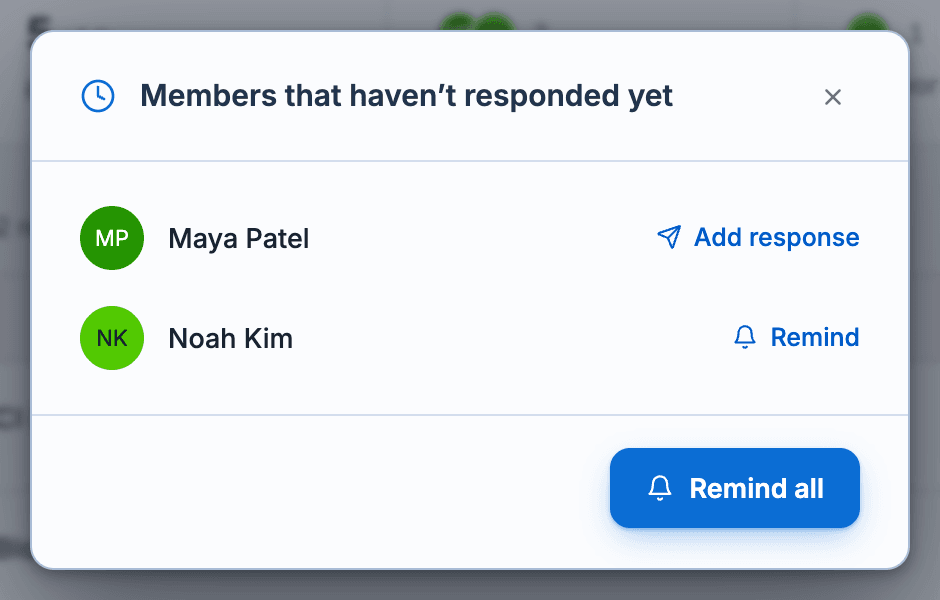
The person gets a message in chat saying who is reminding them, with a link to answer. People on leave show On leave instead of Remind, and your own row shows Add response.
Sending reminders is a paid feature. It needs edit access to the follow-up, and the follow-up must be active.
Add your own response
If you're a member, Add response on the Responses tab opens the form for the selected date. See Submit from the dashboard.