 Sup!
Sup!Questions
Write a follow-up's questions, choose answer types, and mark required and blocker questions.
You set these on the Add questions step (Edit questions when editing). A new follow-up starts with two required text questions.
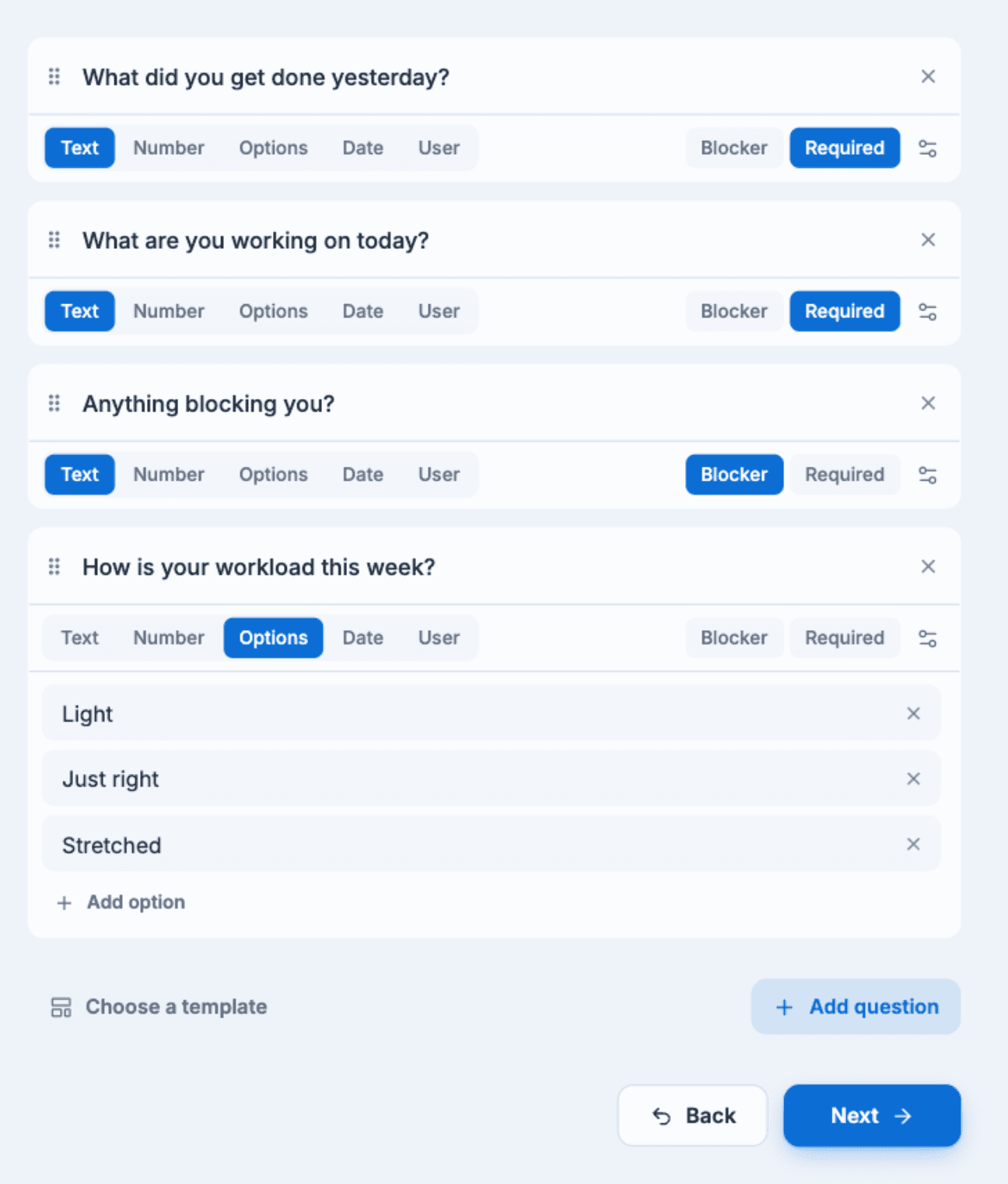
Each question card has the question text, its answer type, and the Blocker and Required toggles. The settings icon at the end opens previous answer settings.
Add, remove and reorder
- Add question adds one at the end.
- Remove question deletes one. A follow-up always keeps at least one question.
- Drag a question by its handle (Drag to reorder) to move it.
- Choose a template replaces your questions with a template's questions. Templates are listed under Public templates and Workspace templates.
Questions can be up to 500 characters.
Answer types
Each question has an answer type:
| Type | Members answer with | Notes |
|---|---|---|
| Text | Free text | The default |
| Number | A number | Paid feature |
| Options | One of the options you list | Paid feature. Use Add option; each option can be up to 70 characters |
| Date | A date | Paid feature |
| User | A person in your workspace | Paid feature. Not in conversational follow-ups |
Required and blocker
- Required: members must answer before they can submit.
- Blocker: marks the question that asks about blockers, so blocker answers stand out in the channel and on the responses page. Only one question can be the blocker, and it can't also be required.
How members skip the blocker question when they have none:
- Slack dialog: the question sits behind a Do you have any blockers? checkbox.
- Slack conversational: reply "no", "none", "n/a" or "-".
- Microsoft Teams: leave the field blank.
Show the previous answer
Select the settings icon on a question (Previous answer settings) to show members what they answered last time while they answer it. In Show the previous answer of, pick a question of the same type, then select Done. Pick Don't show previous answer to turn it off.