 Sup!
Sup!Create a follow-up
Set up a new follow-up from a template or from scratch.
Before you start
If your workspace admins have turned on access control, only admins with the Create follow-ups permission can create one. See Who can create, view and edit. Your plan also limits how many follow-ups can be active at once.
Start a new follow-up
In the Sup! dashboard, select Follow-ups in the sidebar, then Create follow-up.
Choose a template
Select a template card to start from it, or select Create your own to start blank. Each card lists the template's questions. A template fills in the name, active days, frequency, questions and mood tracking, and you can change any of them in the next steps.
Choose the interaction type (Slack only)
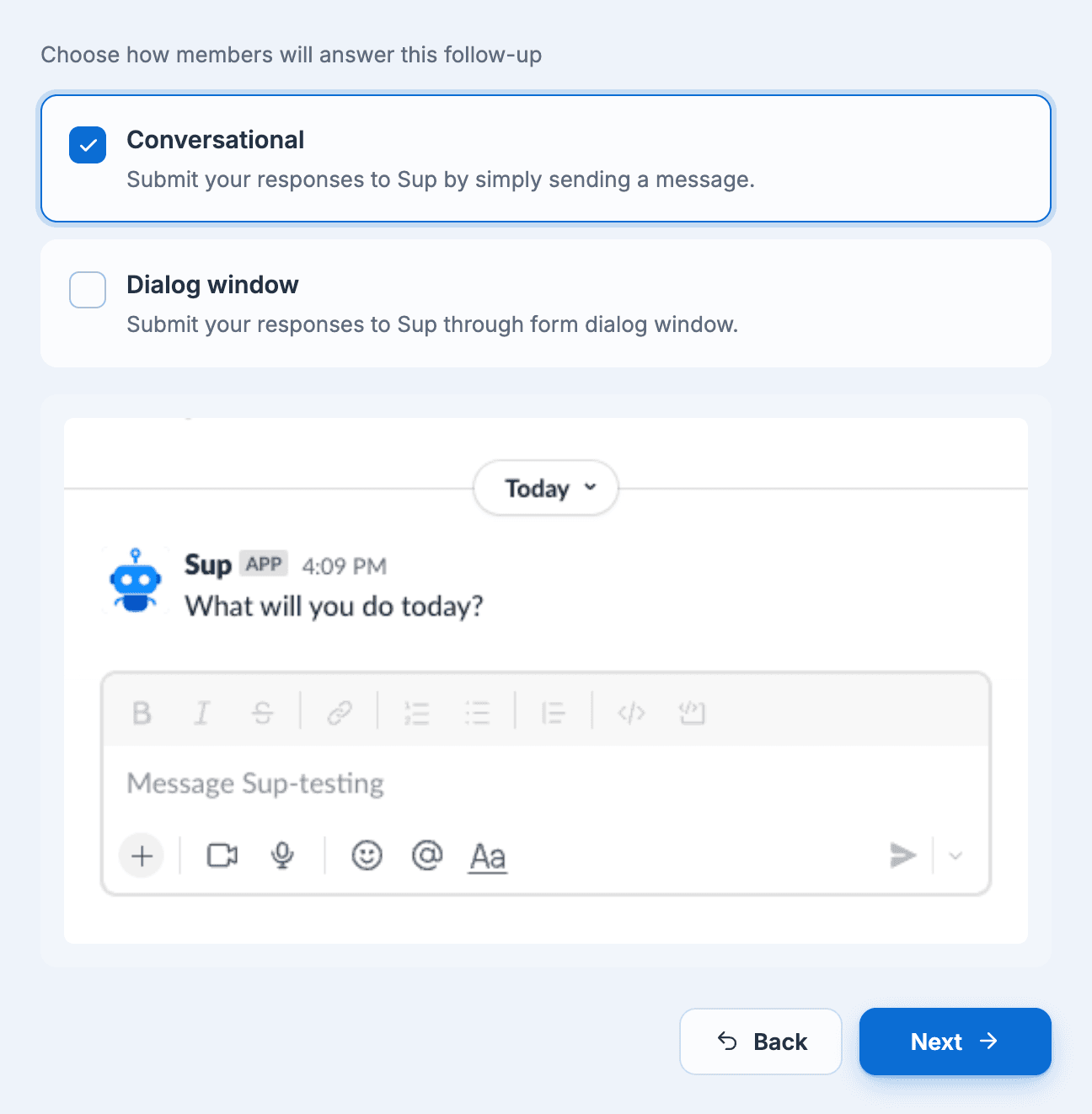
Choose how members answer, then select Next:
- Conversational (the default): members answer by sending Sup! a message, one question at a time.
- Dialog window: members fill in a form.
The preview below the options shows what members will see.
If the Sup! app needs to be reinstalled before you can use conversational follow-ups, a Reinstall link appears here.
Name & schedule
Give the follow-up a Name, then set its Time, Frequency, Active days and Reminders. This step also has the Mood tracking switch. More on scheduling.
Channels & members
Pick the channel where responses are posted and add the members who answer. Under Advanced settings you can also set who can view and edit the follow-up, post responses at a set time and turn the daily summary on or off. More on channels and members.
Add questions
The follow-up starts with two required text questions. Edit them, add more, change their answer types or load a template's questions. More on questions.
Messages & responses
Customize the messages Sup! sends, and choose whether members can say they're not working today, edit their response or answer for past dates. More on messages.
Select Create follow-up to finish.
You can move between steps with Back and Next. Once the follow-up is created, the app opens its page. The follow-up first runs at its next scheduled time. To send it right away, use Trigger now.
On a trial, a banner on this page warns you if the new follow-up will be deactivated when the trial ends because the free plan allows fewer follow-ups.