 Sup!
Sup!Edit, pause, duplicate or delete
Change a follow-up, run it now, pause it, copy it, or remove it.
All of these need edit access to the follow-up. See Who can create, view and edit.
Edit a follow-up
Open the follow-up and select Edit. This opens every step you went through when creating it, except the template. Select Update follow-up at the end.
To change just one part, select it in the Details panel instead:
| Select | To edit |
|---|---|
| Schedule or Mood tracking | Name & schedule |
| Channel, Summary or Members (then Edit) | Channels & members |
| Questions | Questions |
On Slack, the interaction type (dialog window or conversational) can only be changed through Edit.
Trigger now
To send today's follow-up straight away, open it and select Trigger now, then confirm. Members are asked for today's response.
The button only shows when the follow-up is active and hasn't run yet today. A follow-up can only run once per day.
Pause or resume
Use the Active switch in the Follow-ups list, or the Active label on the follow-up's page. When you pause it, confirm with Deactivate.
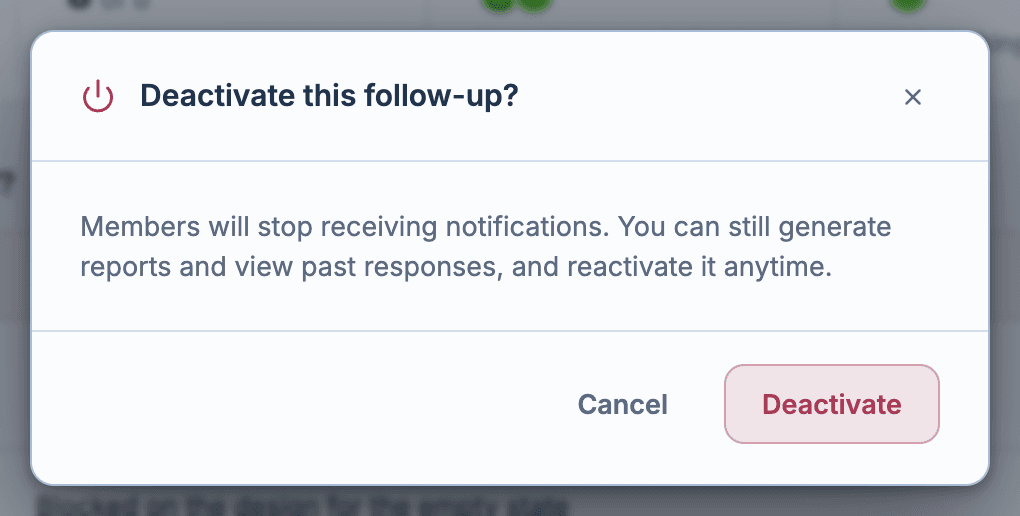
A paused follow-up stops messaging members. You can still read past responses, generate reports, and resume it at any time.
Free plan limits: you can turn follow-ups back on up to 3 times a month, and only weekly follow-ups can be reactivated.
Automatic pausing
Sup! pauses weekly follow-ups that nobody uses. A follow-up is paused if all of these are true:
- it's more than 15 days old
- it hasn't been edited in 14 days
- it has had no responses in the last 45 days
Turn it back on to use it again.
Duplicate
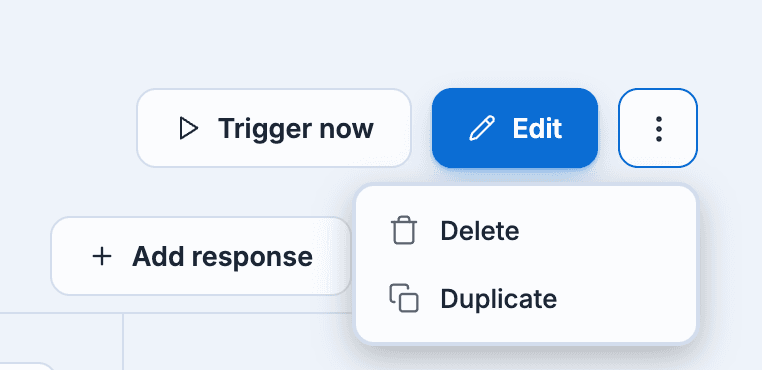
From the ⋯ menu in the list or on the follow-up's page, select Duplicate, then confirm. The copy is called "(name) copy". It has the same schedule, questions and members, and is active straight away. The app opens it in the editor so you can rename it and review the rest.
On the free plan, you can only duplicate weekly follow-ups, and only if you're under your active follow-up limit.
Delete
From the ⋯ menu, select Delete, then Delete permanently.
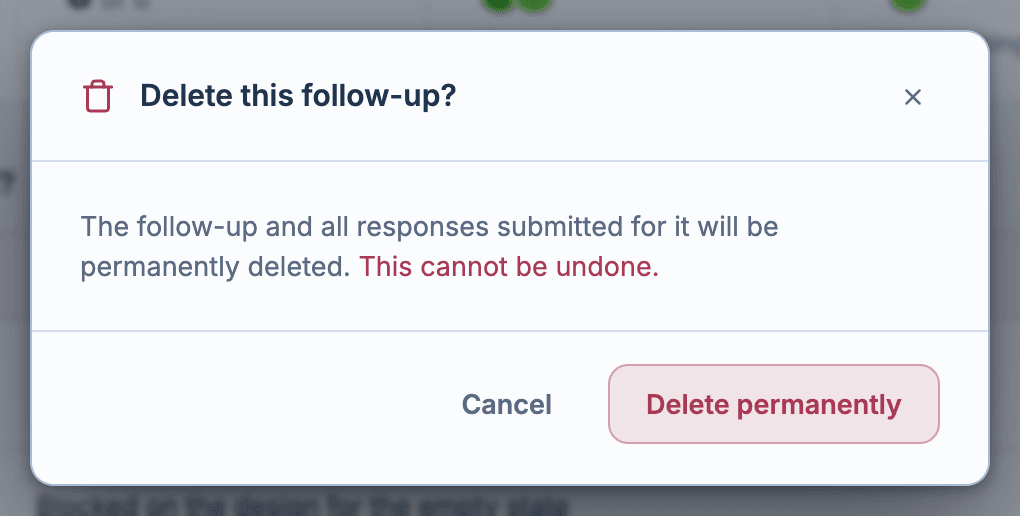
Deleting removes the follow-up and every response submitted for it. This can't be undone. If you might need the responses, download a report first, or pause the follow-up instead.