 Sup!
Sup!Answer a follow-up
For members, how to answer a follow-up right in Slack or Microsoft Teams, and how to edit a response.
You answer a follow-up where you already work. At the follow-up's time, Sup! messages you in Slack or Microsoft Teams, and you reply right there. You don't need to open the Sup! dashboard.
Answer in Slack or Microsoft Teams
The message from Sup! has three buttons:
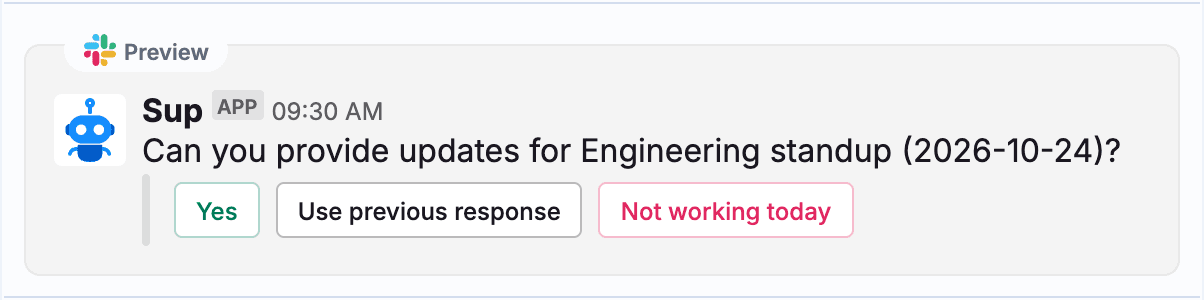
- Yes: answer today's questions.
- Use previous response: open the form already filled in with your last answers, then change what you need and submit.
- Not working today: tell Sup! you're off. Sup! replies "I have marked you as not working today." and lets the channel know. This button only appears if the follow-up allows it.
What happens after Yes depends on where you are:
The follow-up's creator picks one of two ways to answer.
Dialog window: Yes opens a form with all the questions.
- Answer the questions. If you have a blocker, tick Do you have any blockers? and describe it.
- If the follow-up tracks mood, pick an answer for How are you feeling today?
- Select Submit.
Conversational: after Yes, Sup! asks the questions one at a time in your direct messages, and you answer by typing your reply.
- Optional questions have a Skip button.
- View previous answers shows what you said last time.
- For the blocker question, reply "no" or "none" if you have nothing blocking you.
To answer for a particular day, send Sup! a direct message:
response <follow-up-name> <YYYY-MM-DD>. Type help to see how.
After you submit, Sup! sends the follow-up's thank-you message and posts your answers to the channel, if the follow-up has one.
If you start a conversational follow-up and don't finish, Sup! posts what you answered to the channel about two hours later, marked as an incomplete response.
The first time you're added to a follow-up, Sup! also introduces itself and tells you when the follow-up runs and where your answers will be posted.
Edit a response
If the follow-up allows editing, the thank-you message has an Edit response button:
- Slack, dialog window: opens the form again, with an On leave? checkbox. Select Update.
- Slack conversational and Microsoft Teams: opens your response in the Sup! dashboard.
In a Slack conversational follow-up you can also edit or delete your own reply message.
Reminders
If you haven't answered, Sup! may message you "Your response for (follow-up name) is pending." These are the follow-up's automatic reminders. A manager can also remind you from the dashboard; that message says who is reminding you and links straight to the response form.
Alternatively, submit from the dashboard
You can also answer from the Sup! dashboard, for example to catch up on a day you missed.
Open the follow-up from Follow-ups in the dashboard and pick the date.
Select Add response. You see the same three buttons as the chat message.
Select Yes, answer the questions, then select Submit response. Turn on Do you have any blockers? if something is blocking you.
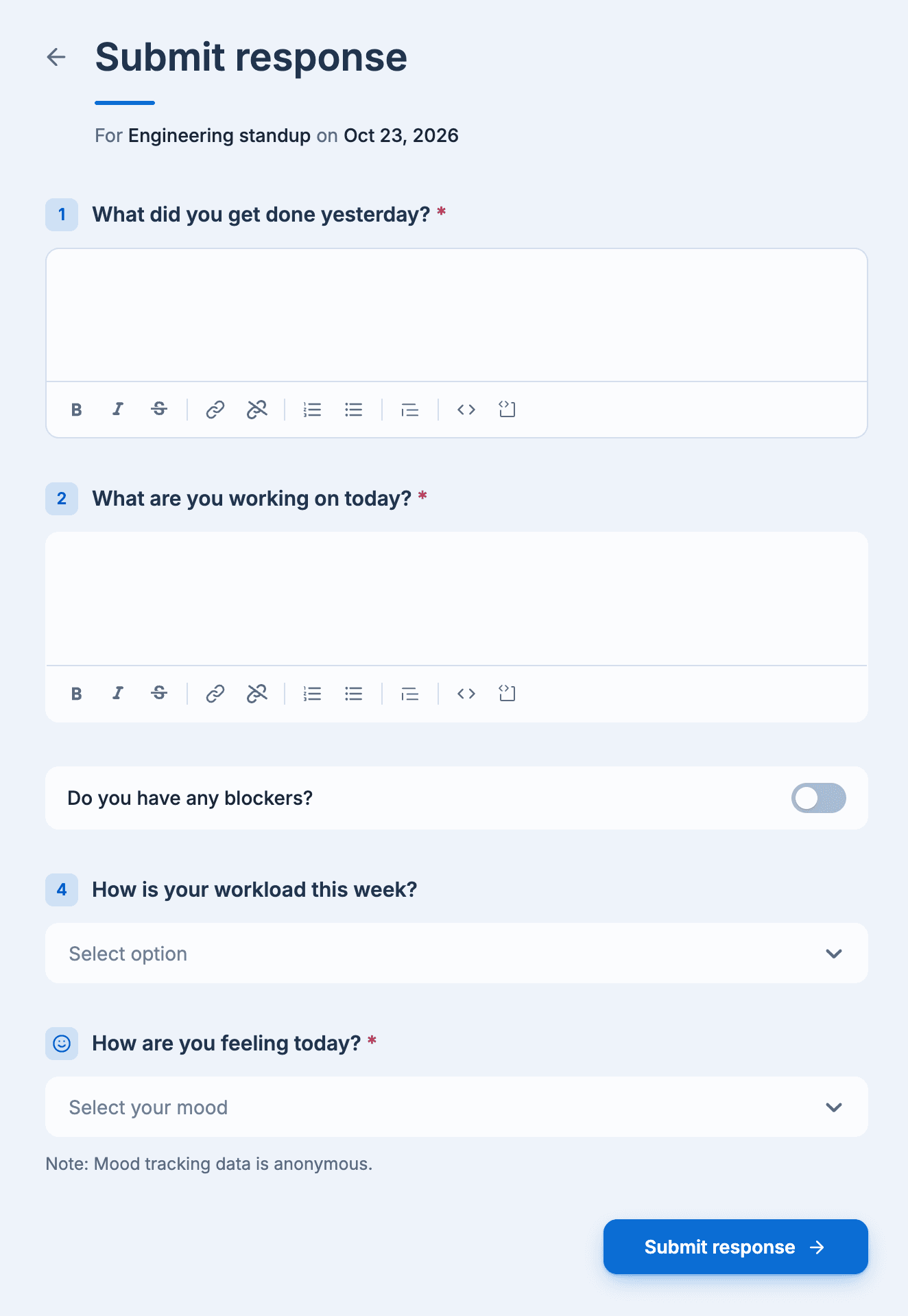
Earlier dates are only available if the follow-up lets members answer for past dates. Your own answers on the follow-up's page have an Edit link.
On Slack, the Sup! app's Home tab also lists Your follow-ups with the same buttons.