 Sup!
Sup!Mood tracking
Ask members how they feel with each response, anonymously, and follow the team's mood.
With mood tracking on, every response to a follow-up ends with one more question: How are you feeling today? Members pick one of five moods. Nobody sees an individual's mood, managers included. You only ever see the team's average.
Turn it on for a follow-up
On the Name & schedule step of a follow-up, turn on Mood tracking. It's available on every plan, and you can turn it on or off at any time by editing the follow-up.
Follow-ups with mood tracking on show a Mood chip in the Follow-ups list.
What members see
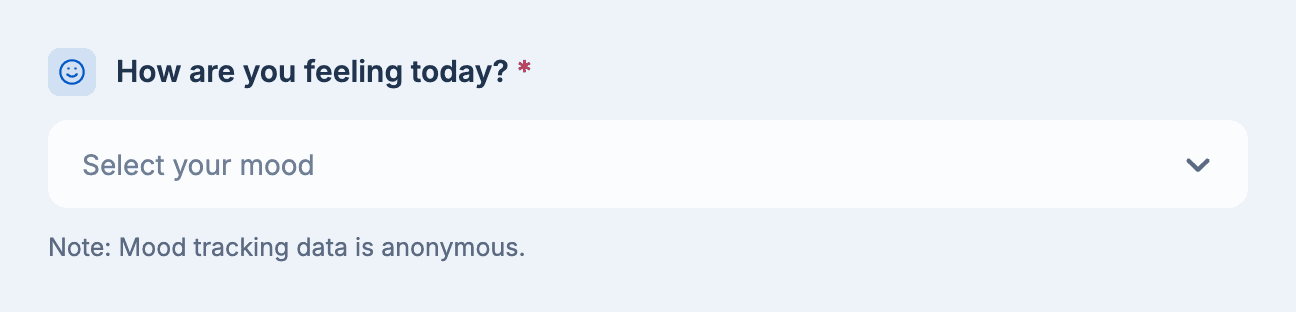
After the last question, members are asked How are you feeling today? and pick a mood from Select your mood:
- In a Slack dialog window or a Microsoft Teams form, it's the last field before Submit.
- In a Slack conversational follow-up, Sup! asks it after the last question.
- On the dashboard's Submit response page, it's the last question, with a reminder that mood tracking data is anonymous.
See the team's mood
- Responses tab: open the follow-up and pick a day. Average team mood shows the average out of 5 with a matching face, or your own mood name if you've renamed them.
- Daily summary: the summary Sup! posts to the channel includes Average mood.

Kept anonymous
Moods aren't shown per person anywhere: not on the responses page, in the channel, or in reports. The average also leaves out moods submitted in the last hour, so a single new mood can't be singled out.
Weekly mood summary
On a paid plan, Sup! can post a chart of the week's mood to the follow-up's channel. It goes out on the follow-up's last active day of the week, two hours after its scheduled time, when:
- the follow-up is Weekly and has mood tracking on,
- it doesn't send responses at a specific time, and
- Receive weekly mood summary is on in the workspace's mood settings (it is by default).
If the follow-up's summary goes in a thread, the mood summary does too. The message has a link to stop receiving it.
Mood settings
Mood settings apply to every follow-up in the workspace. In the dashboard, go to Settings and open the Mood tab.
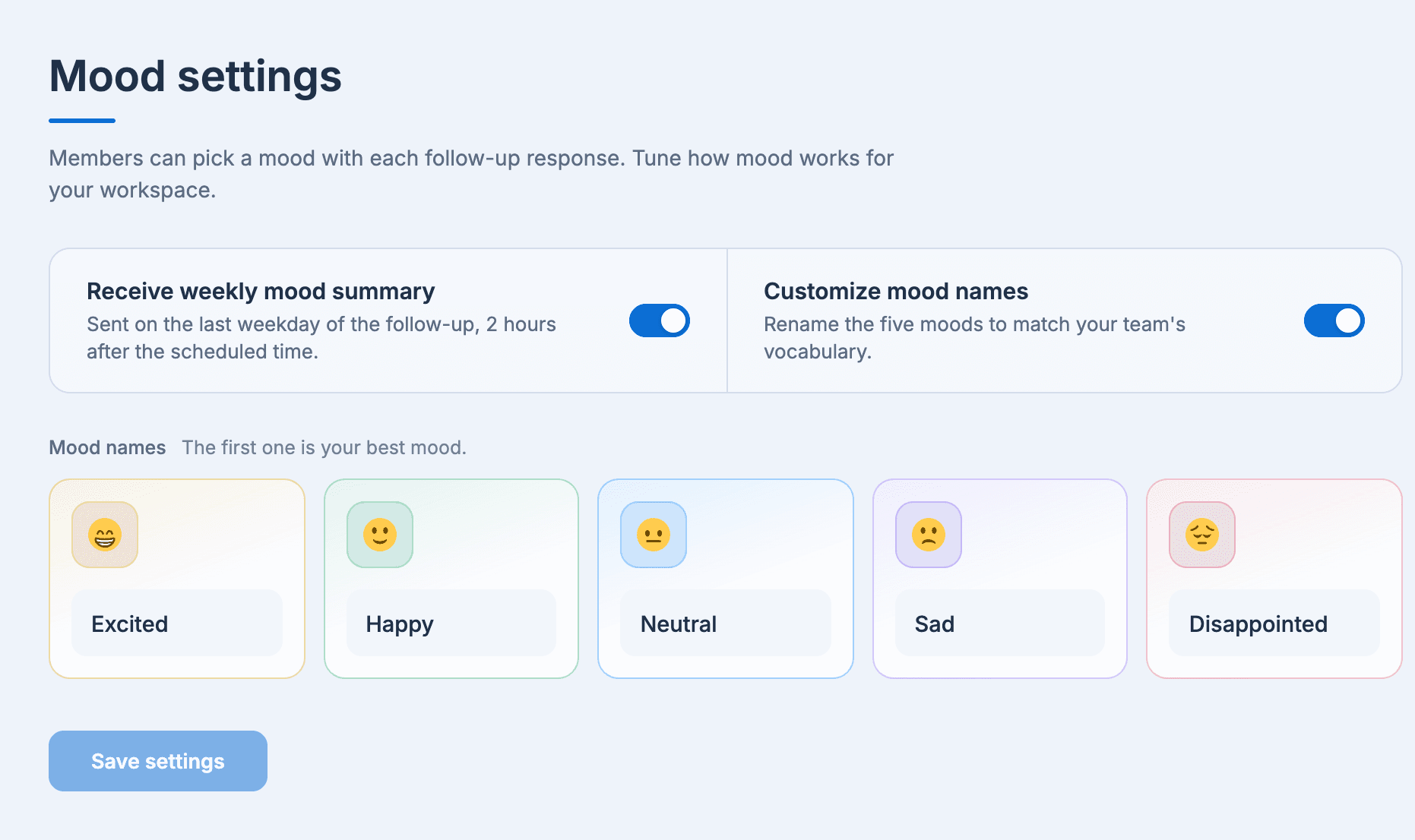
- Receive weekly mood summary: turn the weekly chart on or off.
- Customize mood names: rename the five moods to match how your team talks. The list starts with the best mood. The defaults, from best to worst, are Excited, Happy, Neutral, Sad and Disappointed.
Select Save settings when you're done. Both settings are paid features; on the free plan the tab shows This is a paid feature with an Upgrade link.
If your workspace uses access control, only workspace admins can open the Mood tab. See Who can create, view and edit.