 Sup!
Sup!Follow-ups
Generate a report
Download a follow-up's responses as an Excel file.
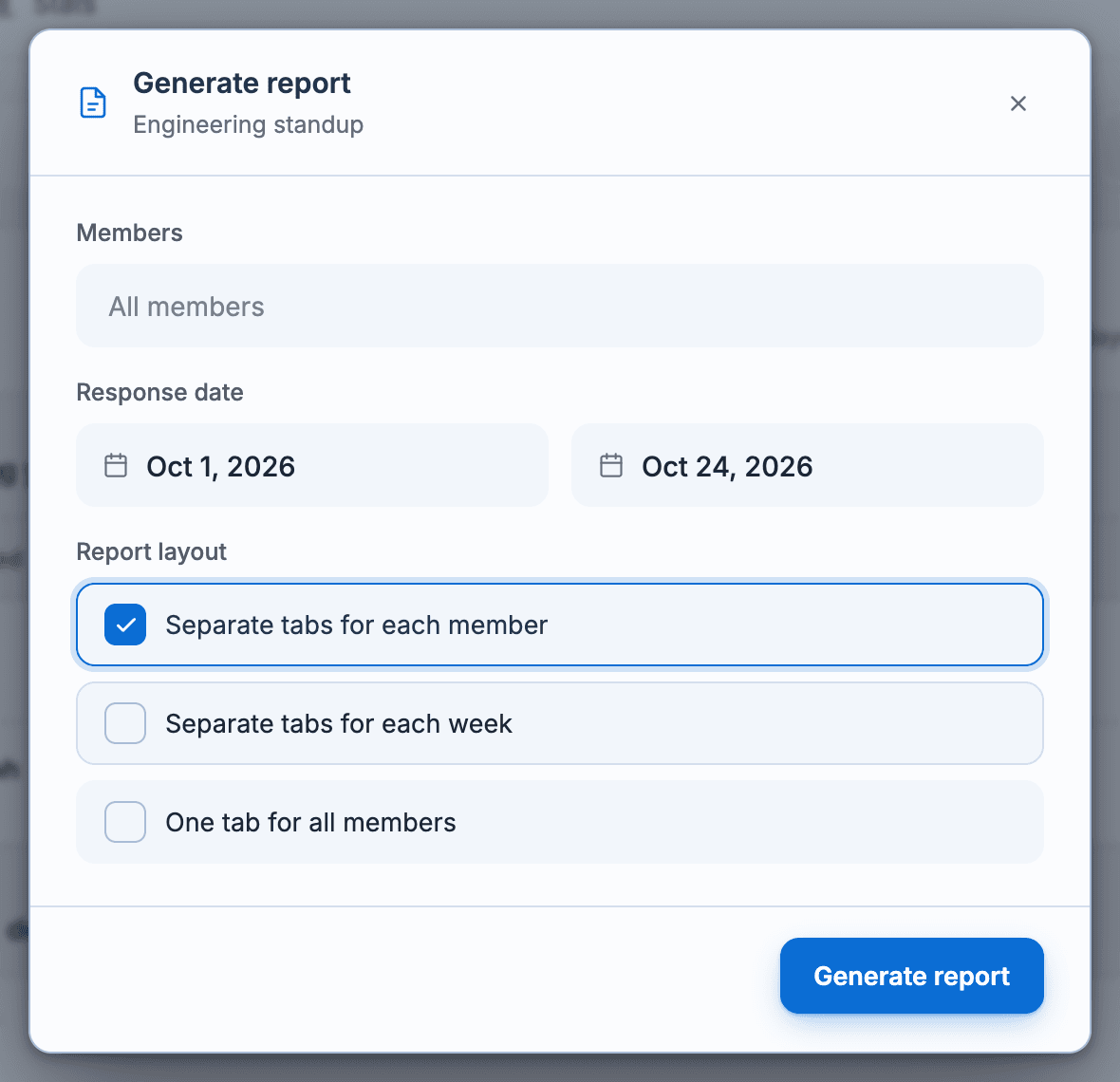
Open the follow-up and select Generate report on the Responses tab.
Under Members, pick people, or leave it as All members.
Under Response date, set From date and To date. To date starts as today.
Choose a Report layout:
- Separate tabs for each member (the default): one sheet per person.
- Separate tabs for each week: one sheet per week.
- One tab for all members: everything on one sheet.
Select Generate report. The file downloads as <follow-up name>.xlsx.
Each row is one response, with its date and submission time, an answer for each question (optional questions are marked (optional)), and whether the person was on holiday.
On the free plan, reports only cover the last 30 days.
Google Sheets
On a paid plan you can also send responses to Google Sheets. Under Integrations in the web app, select the follow-ups to sync. Sup! creates a new sheet at the end of every month with all of that month's submissions.