 Sup!
Sup!Overview
Scheduled check-ins that collect updates from your team in Slack or Microsoft Teams.
A follow-up is a set of questions Sup! asks your team on a schedule: a daily standup, a weekly check-in, an end-of-day update. When it runs, each member gets a message from Sup! in chat and answers there. Sup! can post the answers to a channel, and keeps all of them in the dashboard.
How a follow-up runs
Sup! messages each member
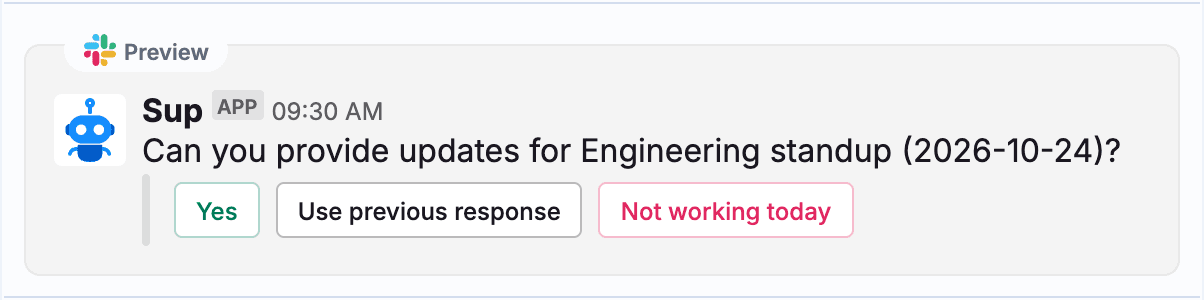
At the scheduled time, every member gets your intro message with three buttons: Yes, Use previous response and Not working today.
Members answer
They answer in a form, or on Slack, one question at a time in the conversation. If you set up reminders, Sup! nudges anyone who hasn't answered yet.
Answers are shared
Each response is posted to the follow-up's channel. You can choose to post each one on its own, in a thread, or all of them together at a set time.
You get a summary
Two hours after the start time, Sup! posts a daily summary showing who answered, who hasn't, who is off and the team's average mood.
The follow-up's page in the dashboard has everything too: responses by day, stats and downloadable reports.
Find your follow-ups
Select Follow-ups in the left sidebar of the dashboard.
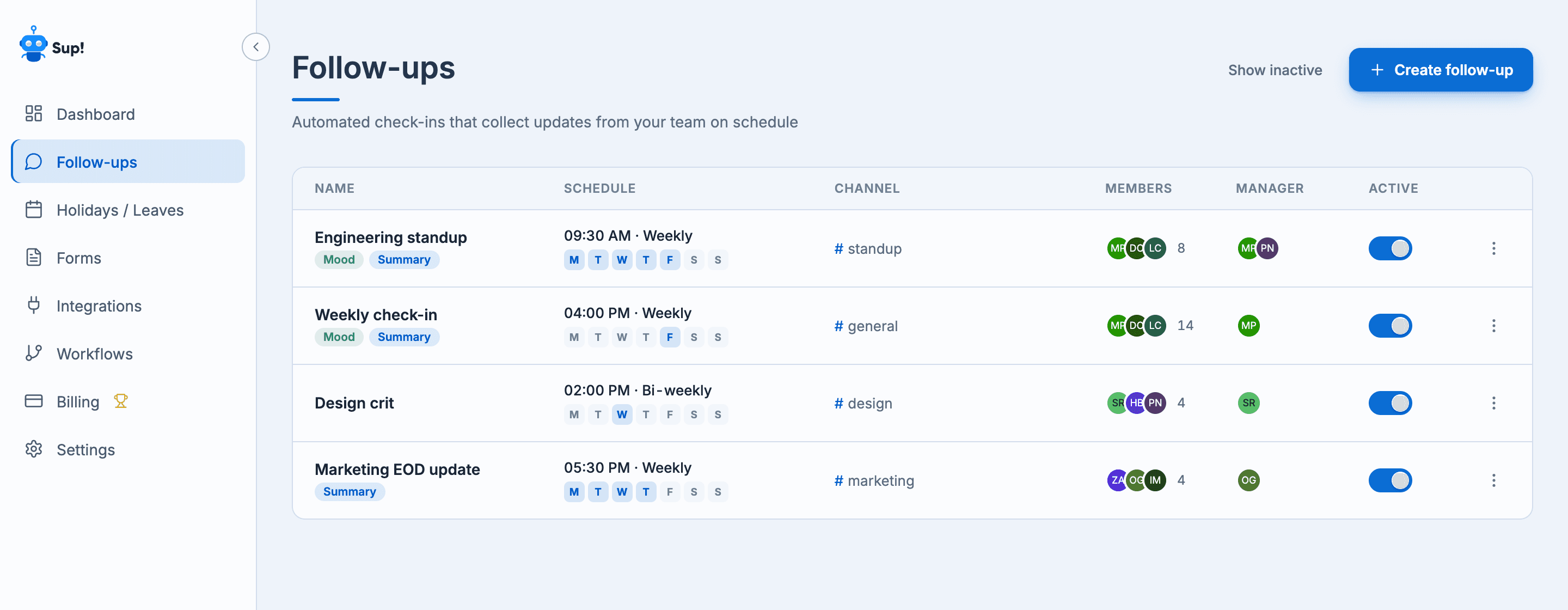
The list has these columns:
- Name, with a Mood or Summary chip if those are turned on
- Schedule, the time and frequency, with the active days lit
- Channel, where responses are posted
- Members and Manager
- Active, a switch to pause or resume the follow-up
Select a row to open the follow-up. Use the ⋯ menu on a row to Delete or Duplicate it. Paused follow-ups are hidden until you select Show inactive.
You only see the follow-ups you're allowed to view. See Who can create, view and edit.
Dialog window or conversational
On Slack you choose how members answer when you create the follow-up:
| Dialog window | Conversational | |
|---|---|---|
| How members answer | Fill in a form that pops up | Sup! asks one question at a time; they reply by typing |
| Platforms | Slack, Microsoft Teams | Slack only |
| User question type | Yes | No |
Microsoft Teams always uses a form, so it skips this choice.