 Sup!
Sup!Messages and response options
Customize what Sup! says, and choose what members can do with their responses.
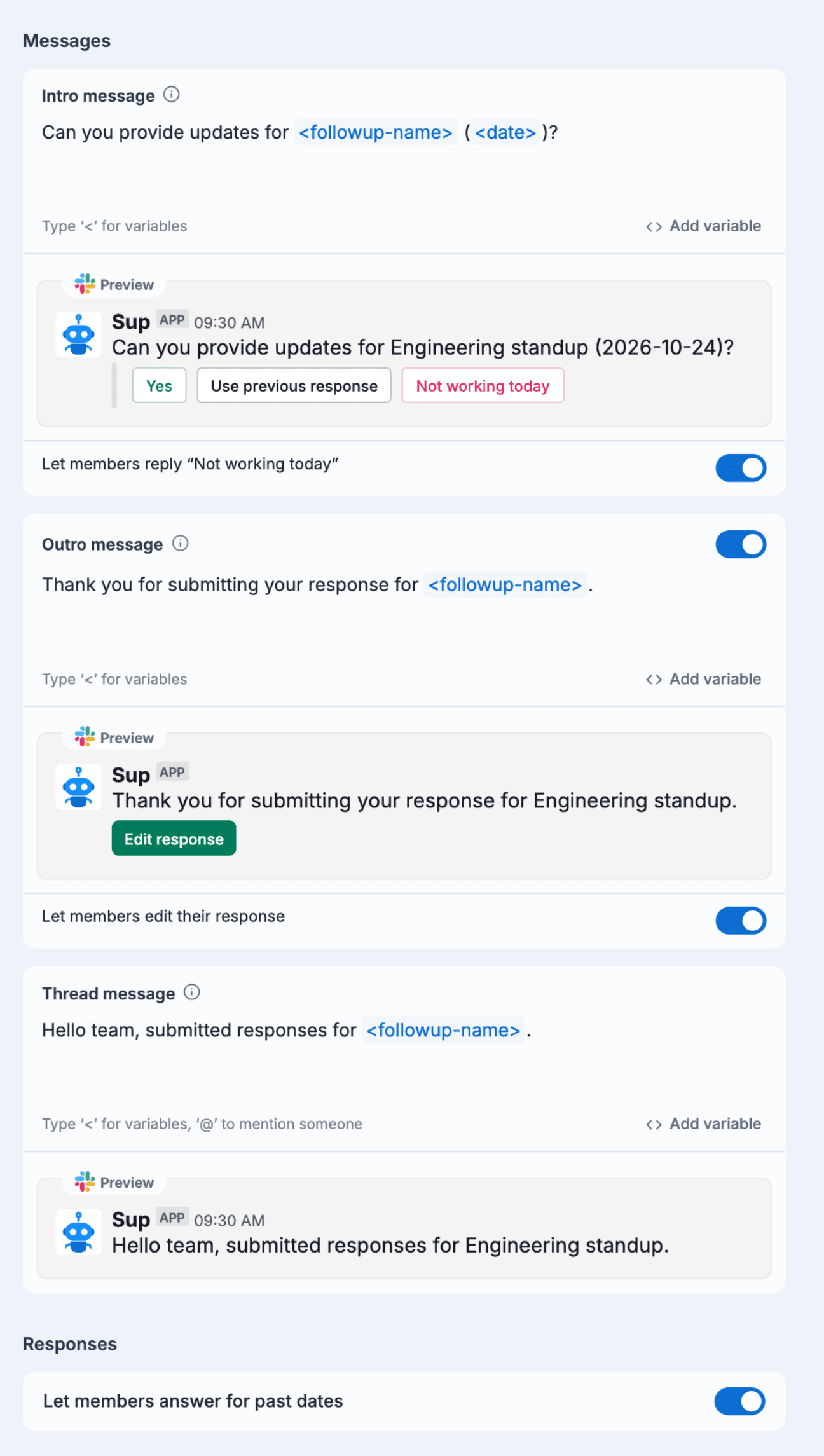
You set these on the Messages & responses step when you create or edit a follow-up. Under each message, a preview shows how it will look in your Slack or Microsoft Teams workspace.
Messages
Intro message
Sent to each member when it's time to answer. Default: "Can you provide updates for
<followup-name> (<date>)?"
Under it, Let members reply "Not working today" (on by default) adds a Not working today button to the message.
Outro message
Sent back to a member as soon as they submit. Default: "Thank you for submitting your response
for <followup-name>." Use its switch to turn it off.
Under it, Let members edit their response (on by default) adds an Edit response button.
Thread message
Posted in the channel to start the thread that responses go into. Default: "Hello team,
submitted responses for <followup-name>." It only appears when the follow-up has a channel and
uses threads or
responses at a specific time.
You can type @ here to mention someone.
Variables
Type < in a message, or use Add variable, to insert a value that Sup! fills in when it
sends the message:
| Variable | Becomes |
|---|---|
<name> | The member's name |
<channel> | The channel name (only when the follow-up has a channel) |
<date> | The follow-up date |
<followup-name> | The follow-up's name |
Messages can be up to 500 characters.
Responses
Let members answer for past dates (on by default) lets members add a response for an earlier day they missed, from the dashboard.