 Sup!
Sup!Set up a team
Create a team, add its members and managers, and pick where its notifications go.
Leave is tracked per team. Each person belongs to one team at a time, and each team has its own managers, rules and notification channel.
Create a team
Only holiday admins can create teams (see Who can do what).
Open Holidays / Leaves, select the team picker at the top, then Create a team.
Give the team a Team name and pick its Notification channel: where requests, approvals and announcements for this team are posted. On Slack, type the channel name and select Send test notification.
Add Members and Managers, and set Leaves available in days: the annual leave each member gets. Then select Create.
People already in another team can't be added until they're taken off it.
The team-ready checklist
After you create a team, Sup! shows (team) is ready to take requests: a checklist of the team's settings, filled in with sensible defaults. It flags anything still missing, such as a channel or members, and links straight to each setting. Select Later to finish it another time.
Members and managers
In Settings, open Members or Managers.
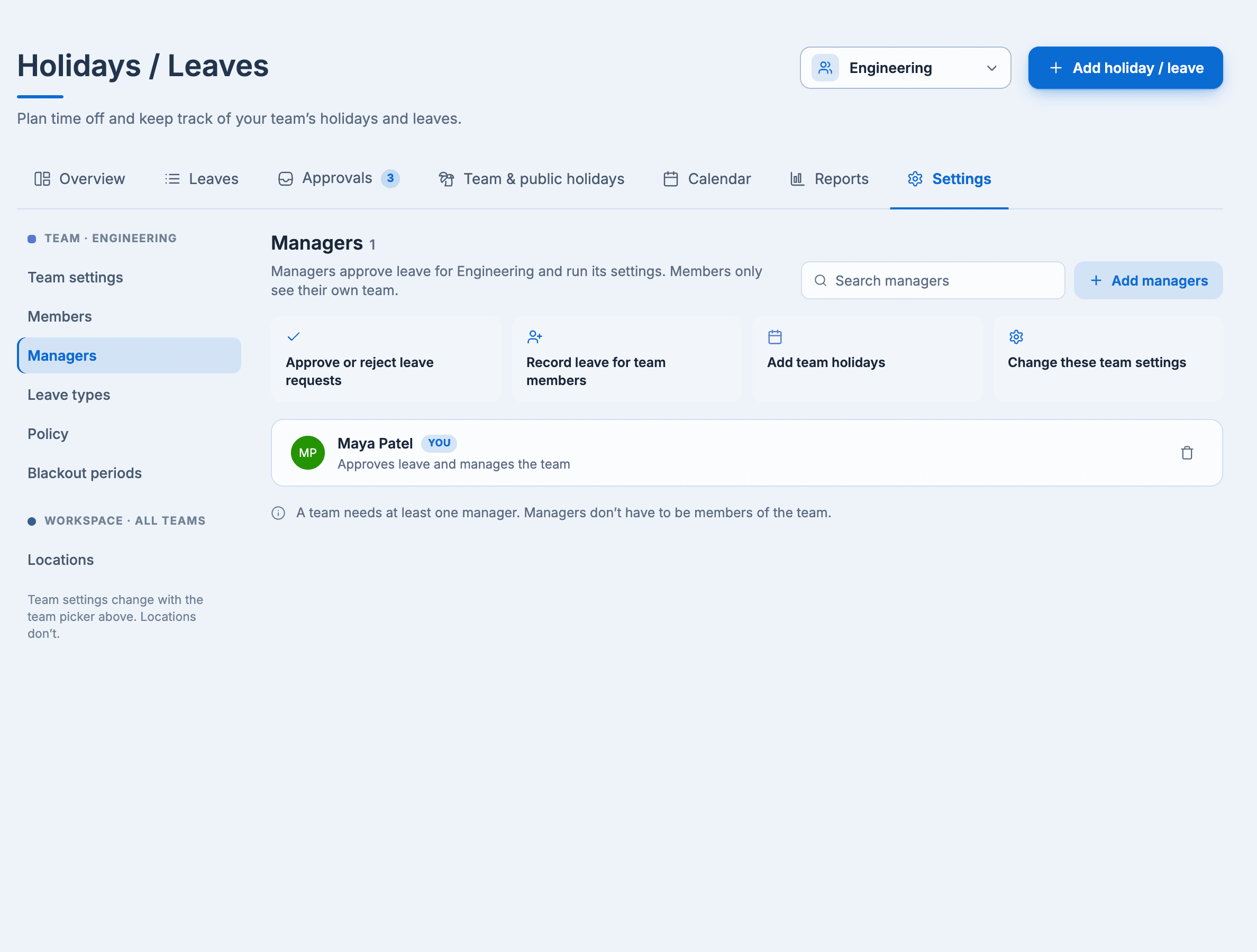
- Members are the people whose leave the team tracks. Select Add members, or Remove someone to take them off the team; their past leave stays on record.
- Managers approve the team's leave, record leave for team members, add team holidays and change the team's settings. A team needs at least one manager, and managers can be in any team.
When you add people to a team in a workspace with locations, Sup! asks them to set their location so they get the right public holidays.
Team settings
Settings > Team settings has the team's name, its notification channel, and Slack status on leave: a default status Sup! sets on people's Slack profile for the length of each approved leave. People can change it on each request. The default status is a paid feature.
Deactivate team stops leave tracking for the team and keeps its history. You can activate it again later.