 Sup!
Sup!Approve leave
For managers and admins, how to approve or reject leave straight from Slack or Microsoft Teams, or from the Approvals tab.
Approvers don't need to open the dashboard to decide on leave. When someone in your team requests leave, Sup! sends you a direct message in Slack (or Microsoft Teams), and you approve or reject it right there.
Approve or reject from Slack
The message from Sup! says "(name) requested a leave" and shows the Member, Leave type, Dates, Duration and Reason, how many days they'll have left after approval, who else is away then, and any policy warning, such as a blackout period.
To approve, select Approve. The message changes to "Leave request has been approved."
To reject, select Reject. In Reject leave, add an optional Reason for rejection, then select Reject. The message changes to "Leave request has been rejected."
View on dashboard opens the request in the dashboard if you want more detail first.
The person who asked gets a Slack message with your decision, and your reason if you rejected it. If they change the dates of a pending request, you get a new message saying they've modified it.
Requests still waiting the next working day get a reminder at 10 AM, with a Review requests button.
Microsoft Teams works the same way: the request arrives as a card with Approve, Reject and View on dashboard.
Alternatively, use the Approvals tab
To see everything waiting for you at once, open Holidays / Leaves in the dashboard and select Approvals. The badge shows how many requests are waiting.
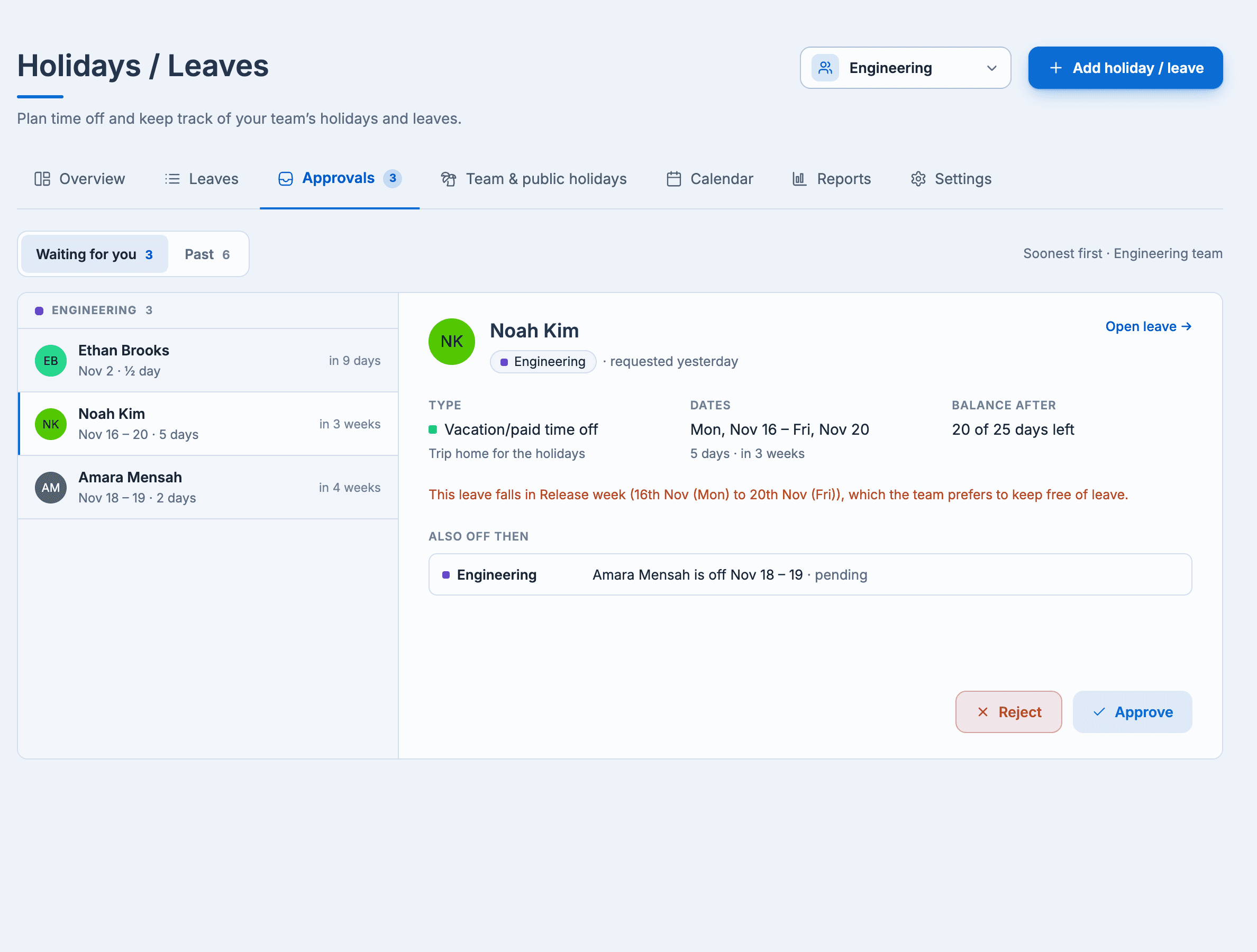
Waiting for you lists requests by team, soonest first. Select one to see its type and reason, dates, Balance after, any policy warnings, and who's Also off then. Then select Approve or Reject; when you reject, you can add a Note for the person. The next waiting request opens automatically.
Past shows the requests you've decided. You can Cancel leave on approved leave from there.
The leave's own page
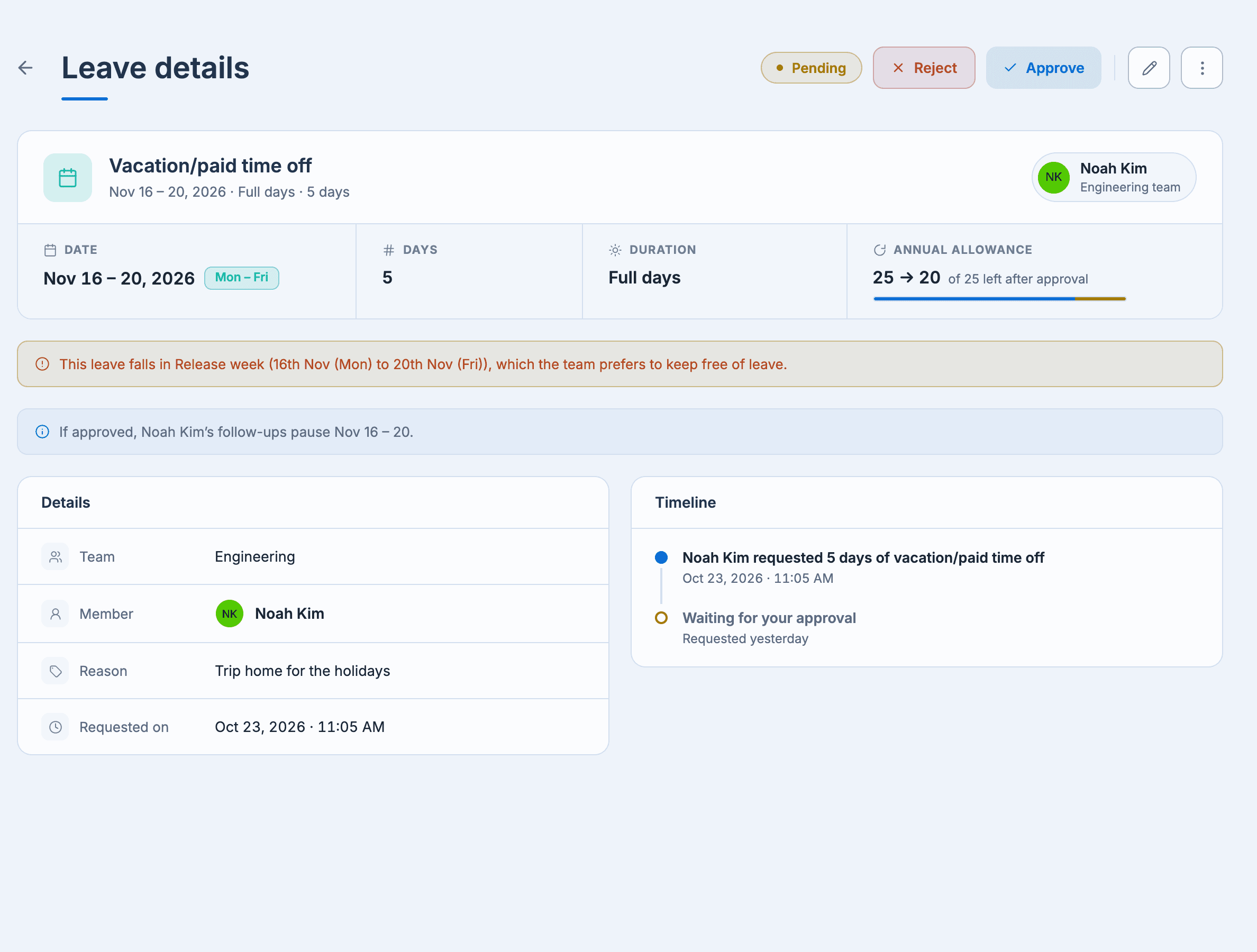
Select Open leave to see a request on its own page: its timeline (who asked, who decided, and whether it was done in Slack or Teams), the person's balance, and whether their follow-ups will pause.
Who approves
A team's managers approve its leave. If a team has no managers and your workspace uses access control, requests go to the holiday admins, who can manage every team.
Record leave for someone
Managers can add leave on someone's behalf: select Add holiday / leave, then Leave for a team member. Leave you add as a manager is approved straight away.