 Sup!
Sup!Leaves and calendar
See all leave in a list or on a calendar, and add it to your own calendar app.
Leaves
The Leaves tab lists leave requests for the month or year, with each one's Dates, Member, Type and Status.
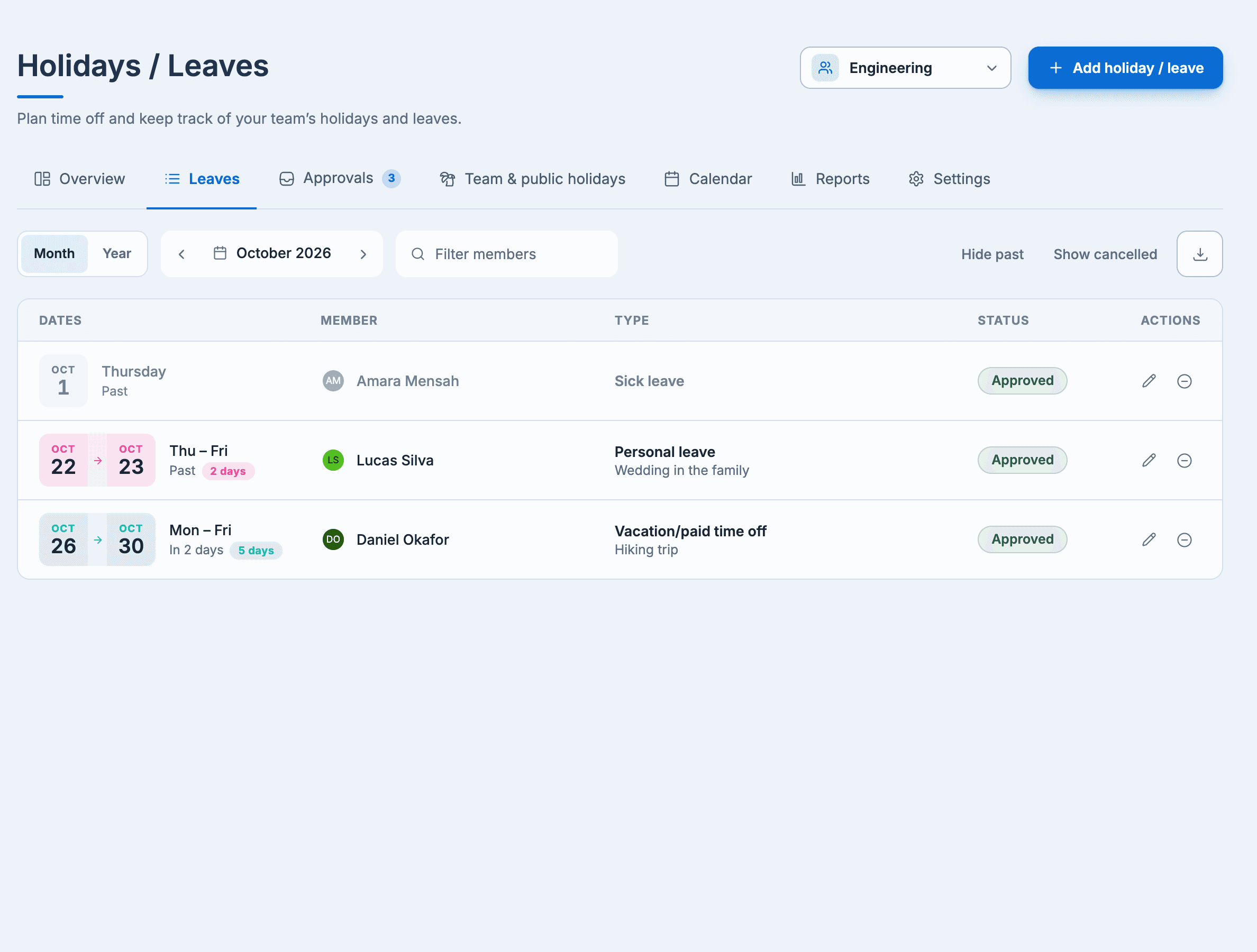
- Switch between Month and Year, and use Hide past and Show cancelled.
- Managers can filter by member and export the list as a CSV file.
- Row actions let you edit, Withdraw request, Cancel leave or Delete, depending on the leave and your role.
Team and public holidays have their own tab.
Calendar
The Calendar tab has two views:
- Team timeline: one row per person for the month, with their leave, public holidays and team holidays. Pending requests are hatched.
- Calendar: a month or year calendar of the team's leave and holidays.
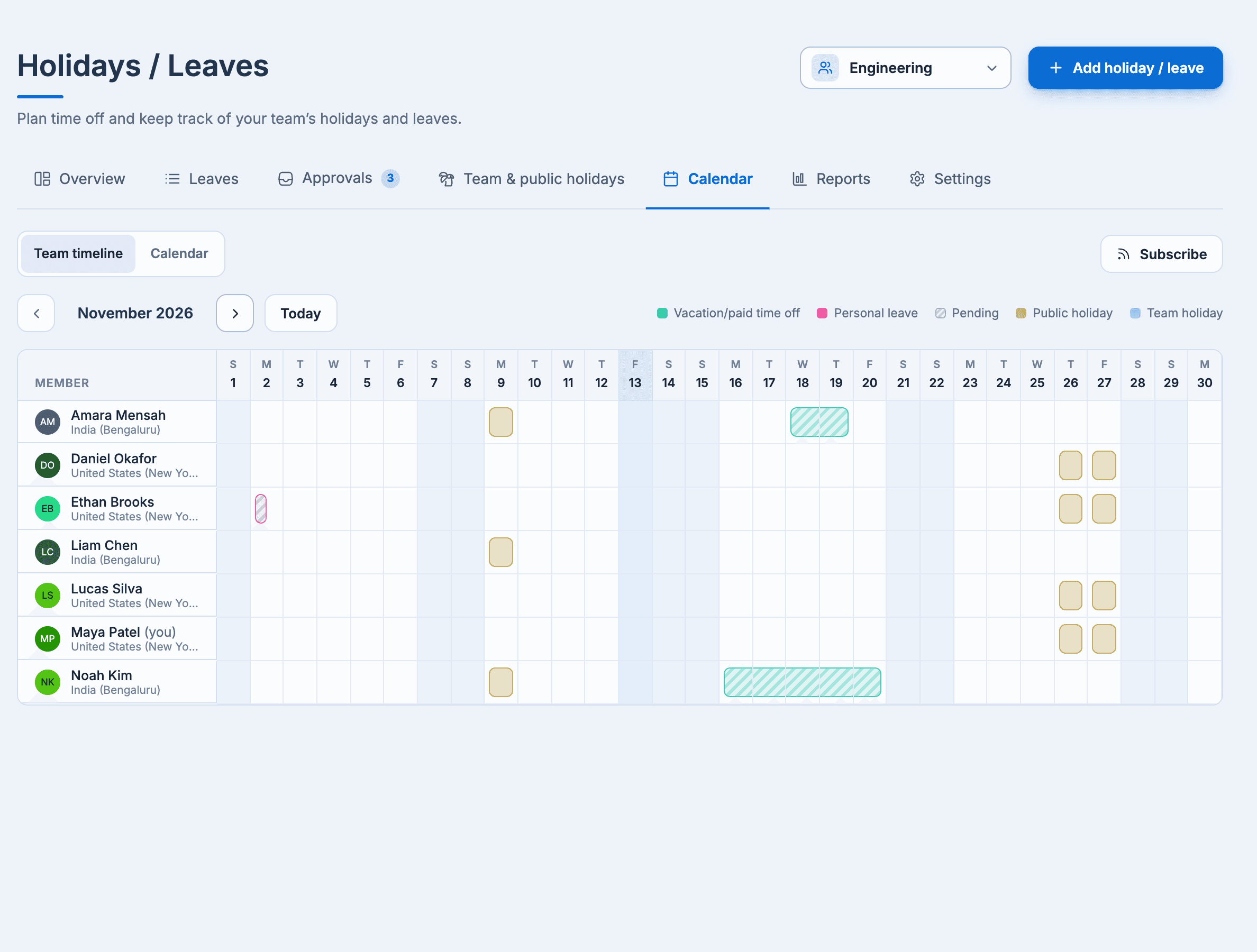
What you see follows the team's visibility setting: approvers see all of their team's leave, and teammates see each other's approved leave if the team allows it.
Subscribe in your calendar app
Select Subscribe on the Calendar tab, then Create my link. Add the private link to Google Calendar, Apple Calendar or Outlook to see the leave you can see in your team (pending requests marked tentative) and your team and public holidays.
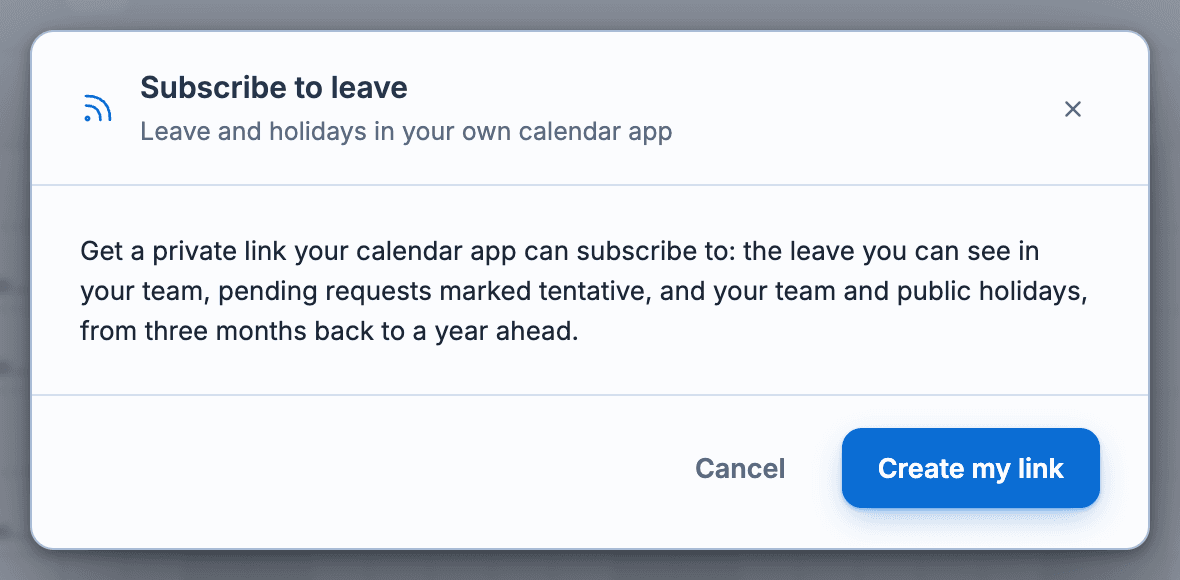
Calendar apps refresh subscriptions on their own schedule; Google can take up to a day. Anyone with the link can see these events, so use Turn off or New link if it's shared by mistake.
Google Calendar sync
On a paid plan, you can also sync approved leave and holidays to a shared Google Calendar. Set it up under Integrations in the dashboard.