 Sup!
Sup!Request leave
For members, how to request time off straight from Slack, or from the dashboard, and change or withdraw a request.
The quickest way to request leave is from the Sup! app in Slack. You don't need to open the dashboard.
Request leave from Slack
In Slack, open the Sup! app and go to its Home tab. Under Your holidays / leaves, select Create holiday / leave.
In Add holiday / leave, pick the type under Select type, and add a Reason if you like.
Choose the Start date and End date. For a single day you can pick a half day under Holiday duration.
Optionally tick Set Slack status and choose a Status emoji and Status message to show you're away while you're on leave.
Select Add.
If the request breaks one of your team's rules (not enough notice, a reason needed, a blocked blackout period, or not enough balance), Slack tells you before it's sent.
The Home tab also lists your holidays and leave for the next 60 days, with their status.
What happens next
- If the leave type needs approval, your request is Pending and your team's managers get a Slack message to approve or reject it. You get a message when they decide.
- If it doesn't, or you're a manager of the team, it's approved straight away.
- Once approved, Sup! announces it in the team's channel and, if you chose a Slack status, sets it when your leave starts.
Alternatively, request from the dashboard
You can also request leave from the Sup! dashboard. In Microsoft Teams, this is how you request leave.
-
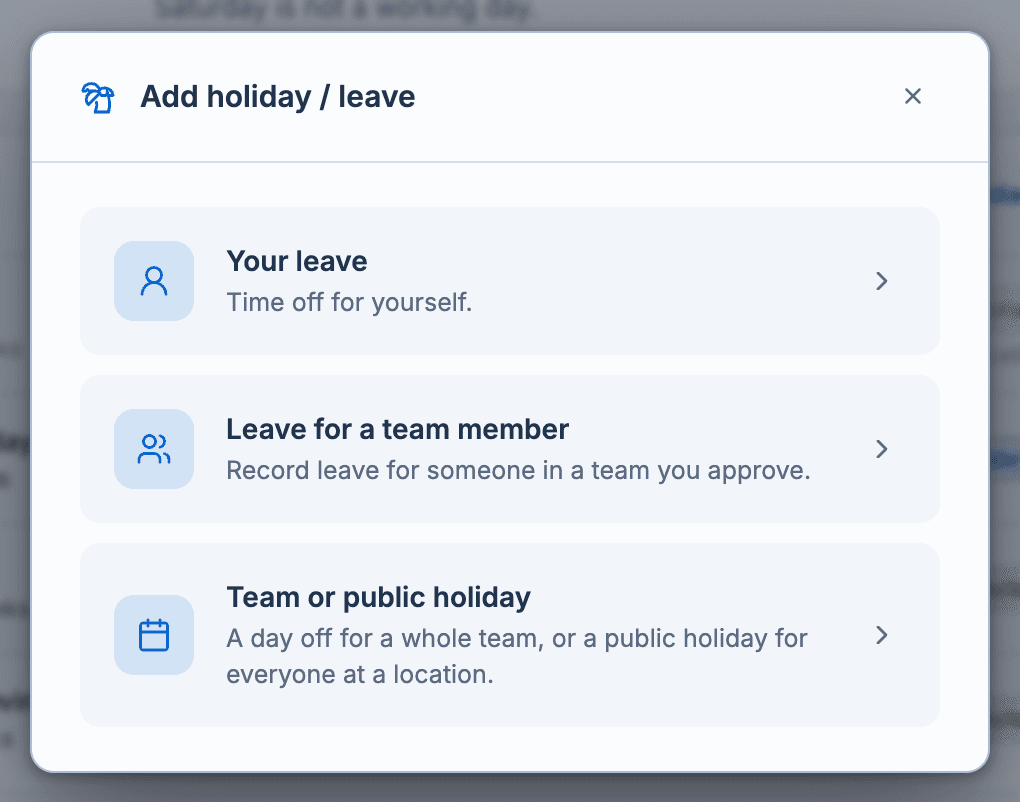
Open Holidays / Leaves and select Add holiday / leave.
-
Choose Your leave.
-
Pick the Type, add a Reason (optional), and choose the Start date and End date. For a single day, choose the Duration: a full day or a morning or evening half day.
-
Check the preview, then select Add.
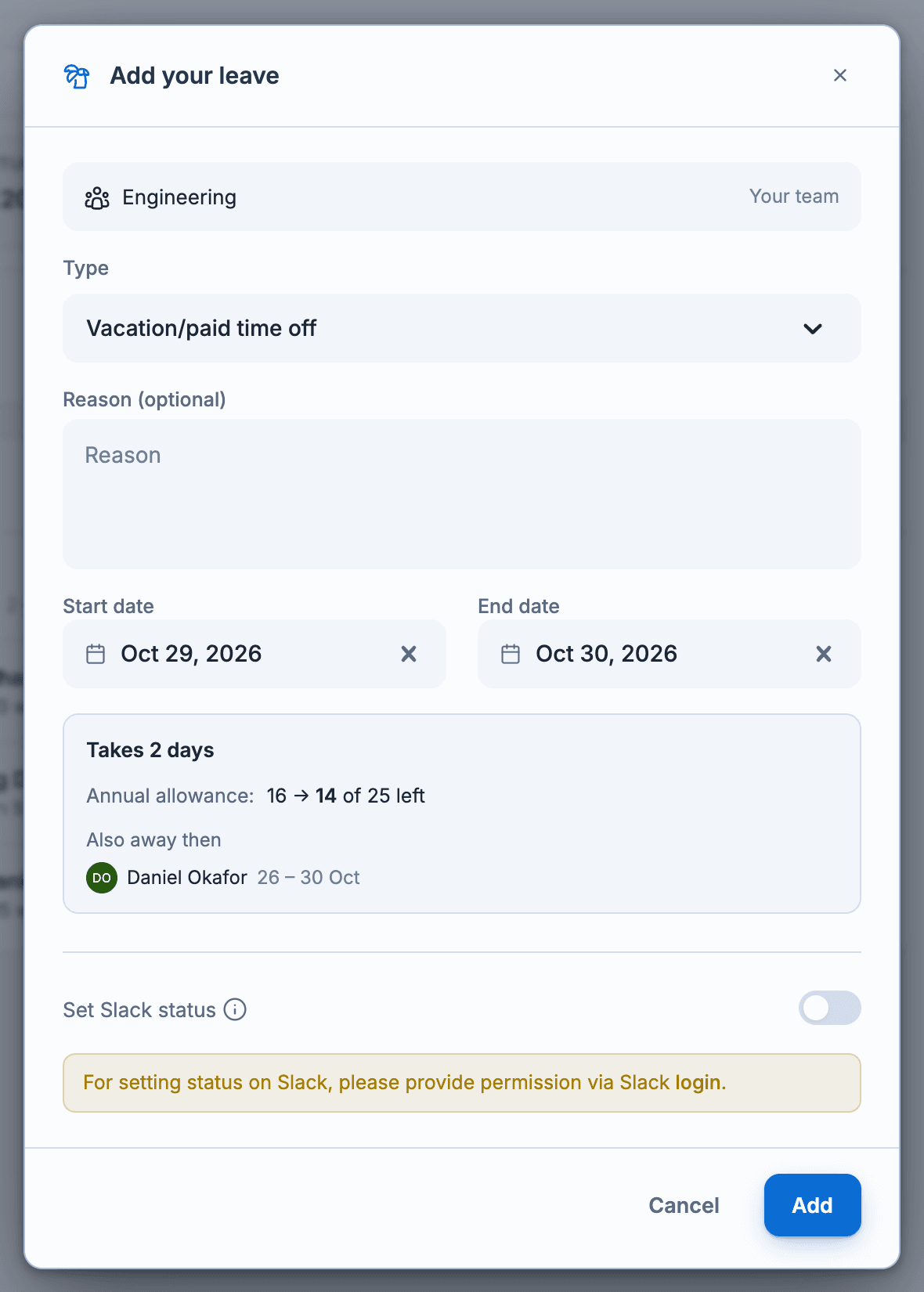
The preview shows how many days it takes, your balance before and after, holidays inside it, and who else is away then. Rules that stop the request show in red and disable Add; warnings show in amber and don't stop you.
Change, withdraw or cancel
Open the request from Leaves or Overview in the dashboard.
- Edit leave: change a request that hasn't been approved yet. If you change the dates, your approvers are asked again.
- Withdraw request: take back a pending request.
- Cancel leave: cancel approved leave before it starts. Its days go back to your balance and your approvers are told.