 Sup!
A new Leave Tracker
Balances and leave policies, an approvals inbox, team and public holidays in one place, and a calendar you can subscribe to.
25 Oct 2026
We've rebuilt the Leave Tracker. The basics work the way your team is used to: people request leave from Slack or Microsoft Teams, approvers decide from a direct message, and Sup! tells the team who's away. Around that, there's now much more to help you plan time off.
Open it from Holidays / Leaves in the dashboard's left sidebar.
What's new
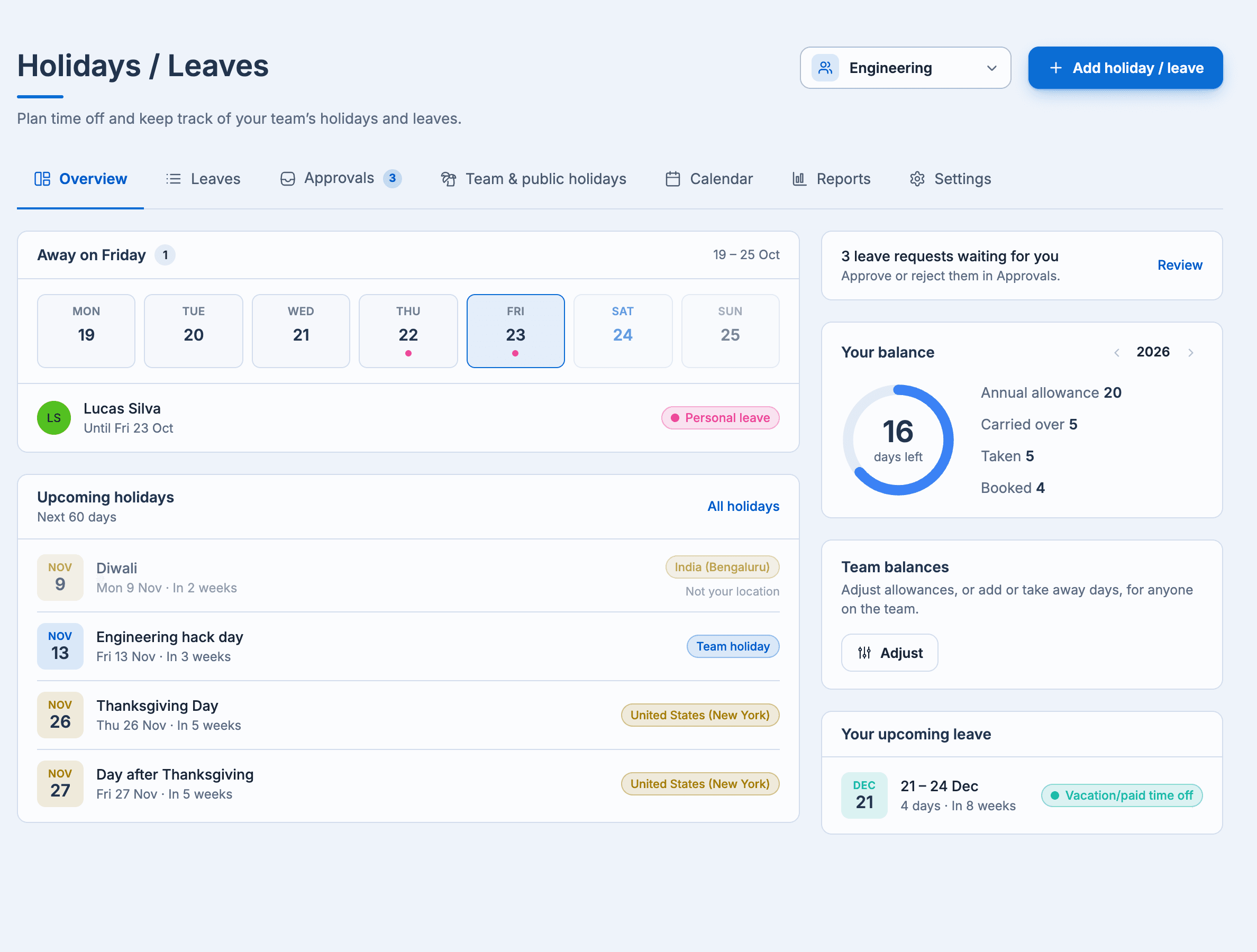
An overview of your week
Overview shows who's away each day this week, the holidays coming up, your balance and your next leave. Approvers also see the requests waiting for them.
Balances and a leave policy for each team
Set each team's Annual allowance and how many unused days carry over into the next year. Each leave type counts against the annual allowance, has its own balance, or isn't counted. Approvers can give one person a different allowance, or add or take away days, from Adjust a balance. More on leave types and policy.
Rules for each leave type
For each type, choose whether it needs approval, how much notice people must give, whether a reason is needed, whether half days are allowed, and whether it's private, so teammates see only "Time off". More on leave types.
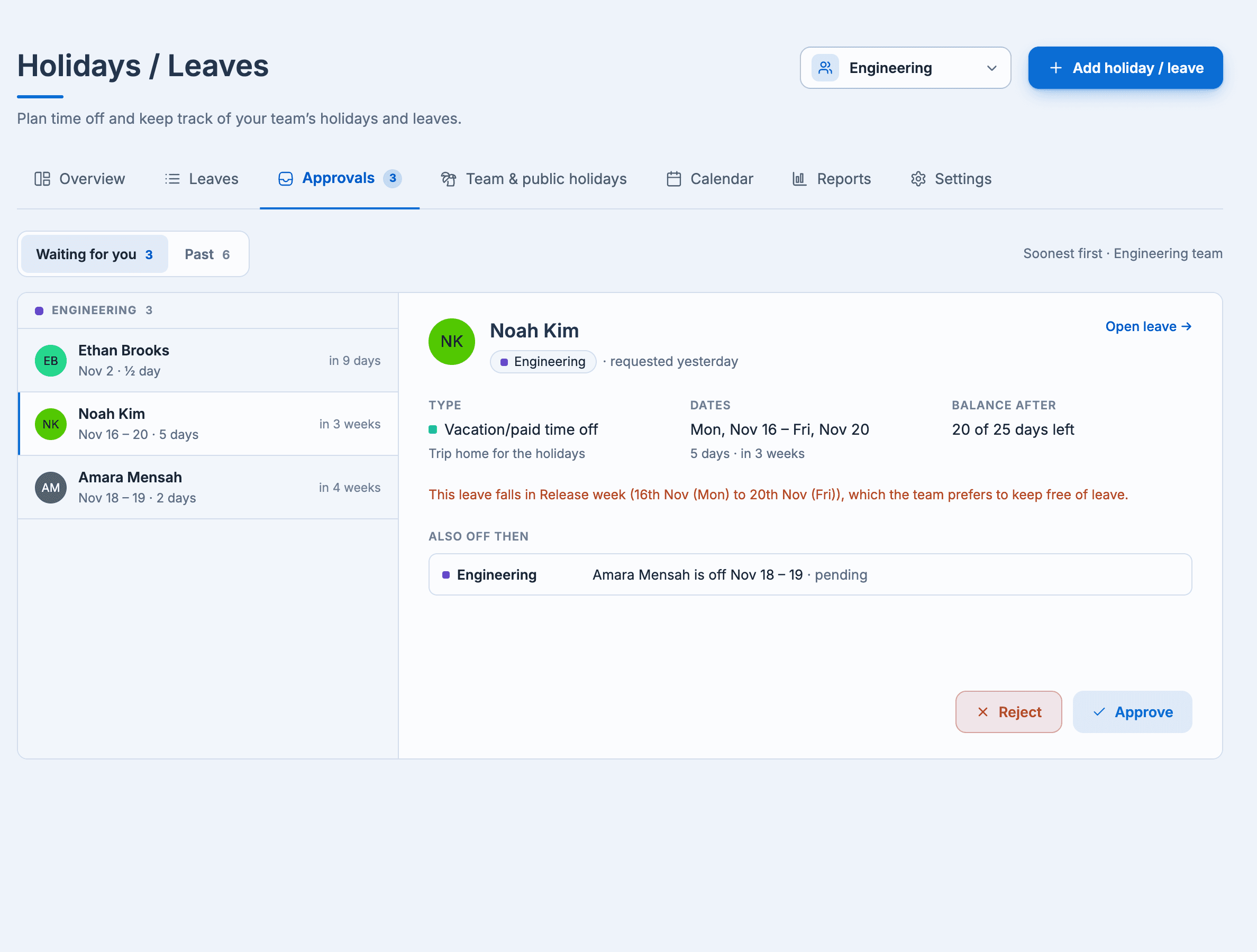
An approvals inbox
Approvals lists every request waiting for you, by team, with the balance after approval, any policy warning, and who else is off. Approve or reject, and the next request opens. Past keeps the requests you've decided. The direct message approvers get in Slack or Microsoft Teams now shows the days left after approval and who else is away, too. More on approvals.
Withdraw, cancel, and a page for every leave
People can withdraw a pending request, or cancel approved leave until it starts; approvers can cancel any of their team's leave. Each leave has its own page with its timeline: who asked, who decided, and whether it was done in Slack or Microsoft Teams. More on changing a request.
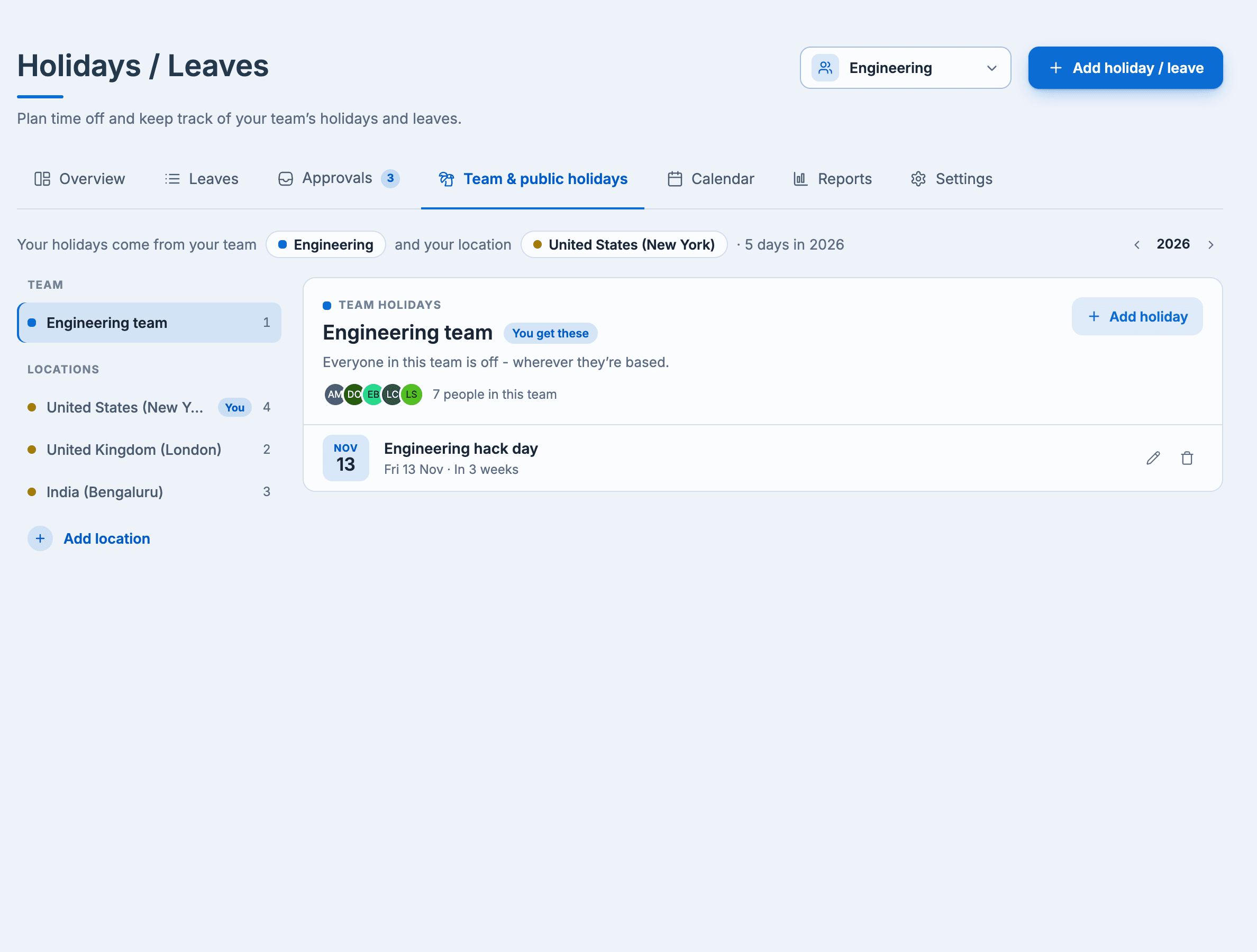
Team and public holidays in one place
The Team & public holidays tab lists your team's holidays and the public holidays of each location. Import a year of public holidays for a location in one go, and set a default location so people who join get the right holidays from day one. More on holidays and locations.
Blackout periods and absence limits
Mark dates the team keeps free of leave, such as a release week, and either block requests or just warn. A team can also warn when too many people would be off on the same day. More on blackout periods.
A calendar you can subscribe to
The Calendar tab has a team timeline and a month or year calendar. Select Subscribe to add your team's leave and holidays to Google Calendar, Apple Calendar or Outlook with a private link. More on the calendar.
Reports
In Reports, approvers see everyone's balance and leave by type, and can export the year to Excel or CSV. More on balances and reports.
Settings in one place
A team's settings are now in Holidays / Leaves > Settings, in sections: team settings, members, managers, leave types, policy, blackout periods and locations. Links to the old pages still work. More on setting up a team.
What changes for your existing teams
There's nothing to set up. Your teams, members, managers, leave types and holidays are where they were, and the new rules stay off until you turn them on. A few things to know:
- Unpaid time off no longer counts against the annual allowance, so people who took unpaid leave have more days left. To count it again, open the type in Settings > Leave types and set Counts against to Annual allowance.
- Members still see only their own leave and the holidays they get. To let teammates see each other's approved leave, without reasons, turn on Members see each other's approved leave in the team's policy.
- Allowance and carry-over changes count from the year you make them. Earlier years keep their numbers, and a carry-over you set now first applies to the days carried into next year.
Want to try it?
Already using Sup! and want to try the new Leave Tracker? Ask us for a free 14-day trial: contact us, or select Contact Us at the bottom of the dashboard's left sidebar.