 Sup!
Sup!Workspace
The workspace's timezone and working days, product update emails, and syncing your members.
Go to Settings and open the Workspace tab. These settings apply to everyone in the workspace. When access control is on, only admins can open this tab.
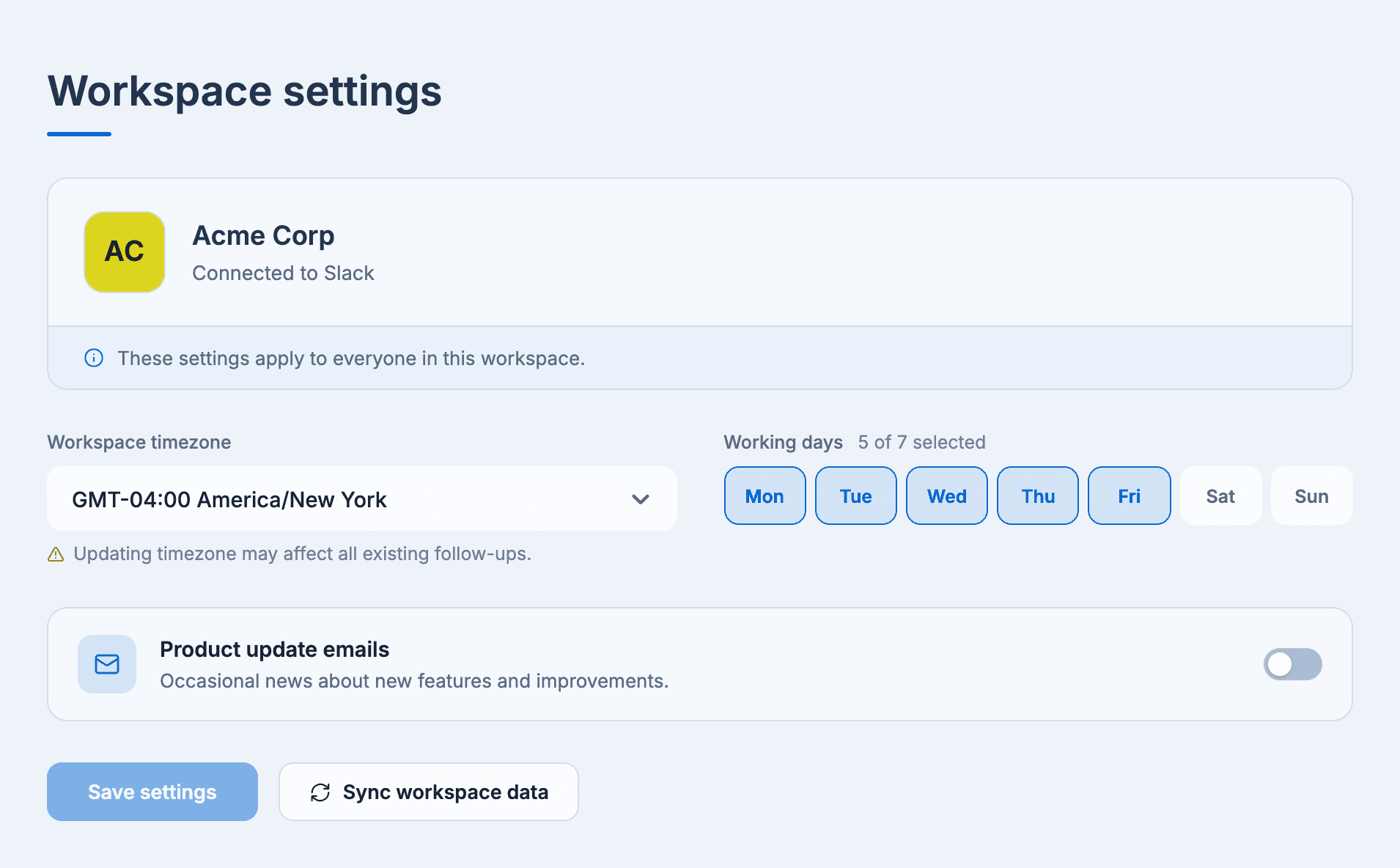
Workspace timezone
The timezone follow-ups run in, unless a follow-up sets its own. See Timezones.
Working days
Pick the days your workspace works. The count next to the label shows how many are selected.
The Leave Tracker uses these days: leave only counts working days, and its daily digest goes out on them. See How days are counted.
Product update emails
Turn this on to get occasional news about new Sup! features and improvements.
Select Save settings when you're done with any of the above.
Sync workspace data
Sup! keeps a copy of your workspace's details and members. If someone who just joined Slack or Microsoft Teams is missing from Sup!, or a name looks out of date, select Sync workspace data, then Start sync. This updates the workspace's details and its members.
You can sync once every six hours. Until then the button is greyed out; hover over it to see when you can sync again.