 Sup!
Sup!Profile
Set your own timezone and where you're based.
Go to Settings and open the Profile tab. These settings are yours alone: they don't change anything for anyone else.
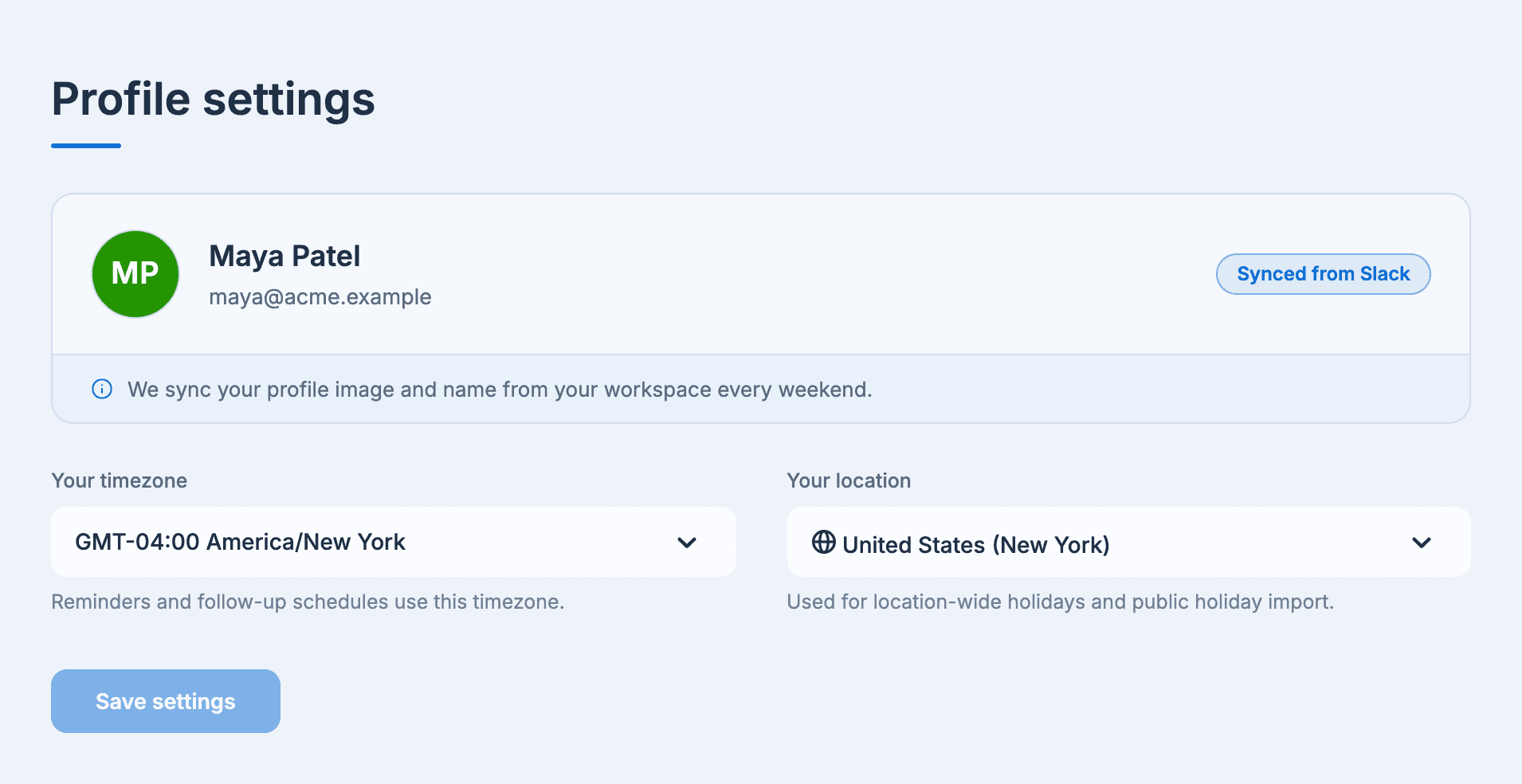
The card at the top shows your name and email as your workspace has them. On Slack, Sup! syncs your name and profile image from Slack every weekend, so change them in Slack.
Your timezone
Reminders and follow-up schedules use this timezone. Pick the timezone you work in.
Follow-ups run in the workspace's timezone by default. See Timezones for when your own timezone is used instead.
Your location
Your location decides which public holidays you get, and is used for location-wide holidays and public holiday import. It only shows on plans with leave tracking.
If no locations exist yet, the field says No locations available to select. Holiday admins get an Add location link; everyone else is asked to have their workspace managers create one first. See Locations.
Save
Select Save settings. If you leave the page with unsaved changes, Sup! asks whether you really want to leave.