 Sup!
Sup!Settings
Overview
Your own profile, the workspace's settings, who can manage Sup!, and the referral program.
Open Settings at the bottom of the dashboard's left sidebar. The settings are split into tabs, listed down the left of the page.
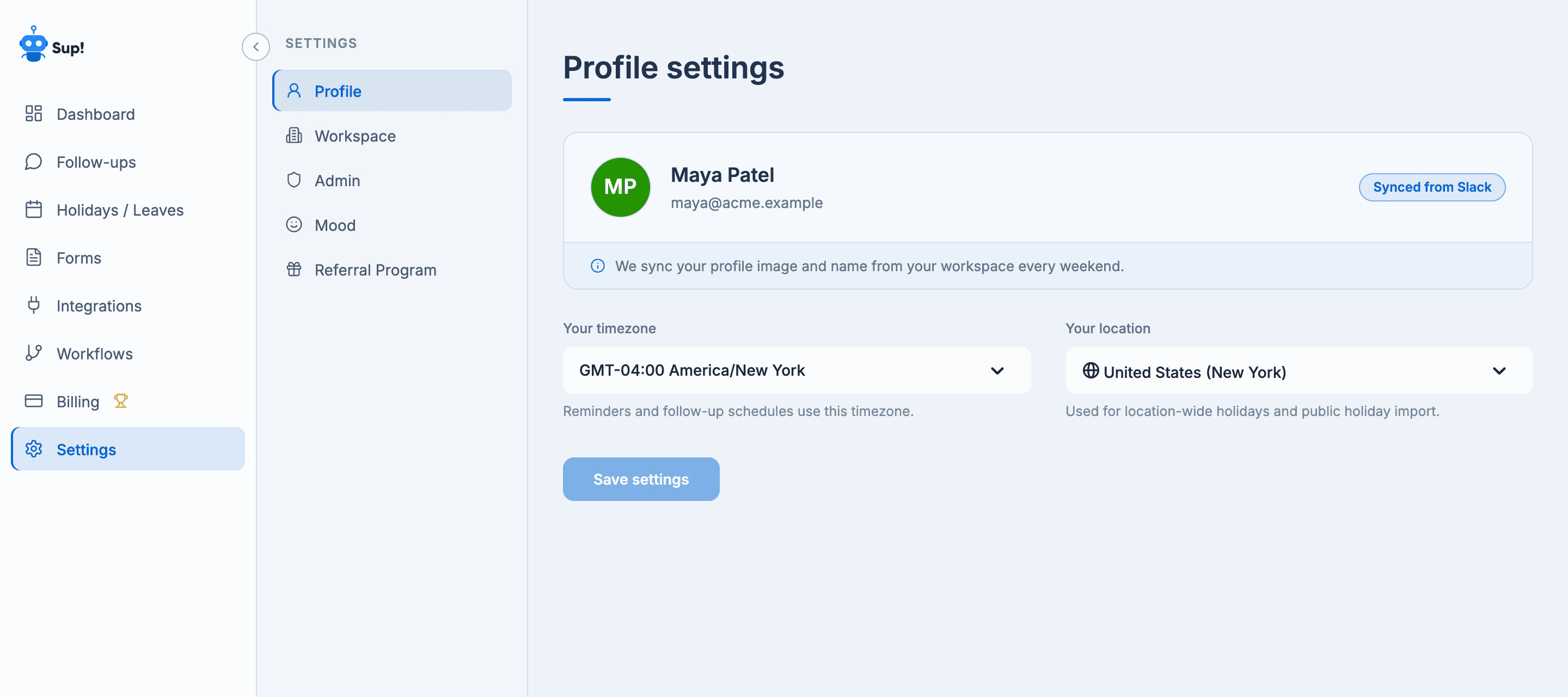
The tabs
| Tab | What's in it | Who can open it |
|---|---|---|
| Profile | Your timezone and your location | Everyone |
| Workspace | The workspace's timezone and working days, product emails, and syncing members | Everyone, or only admins when access control is on |
| Admin | Access control, and which admins can do what | Everyone, or only admins with Manage admins when access control is on |
| Mood | The weekly mood summary and the mood names | Everyone, or only admins when access control is on |
| Referral Program | Your referral link and rewards. Slack only | Everyone |
On a phone, the tabs move into a picker at the top of the page.
When you can't open a tab
When access control is on and a tab is only for admins, it shows You don't have permission to access this page. Select Request admin access to ask your Sup! admins for access. The button changes to Request sent.
Switch workspace or log out
The card at the bottom of the tab list shows the workspace you're in. Select it to switch to another workspace you've signed in to, or to add one.
Logout signs you out of this workspace.