 Sup!
Sup!Admins and access control
Choose who can manage admins, follow-ups, holidays and leave, and billing.
By default, everyone in the workspace can manage all of Sup!'s settings. Turn on access control to give that power only to the people you pick, and decide what each of them can do.
Go to Settings and open the Admin tab.
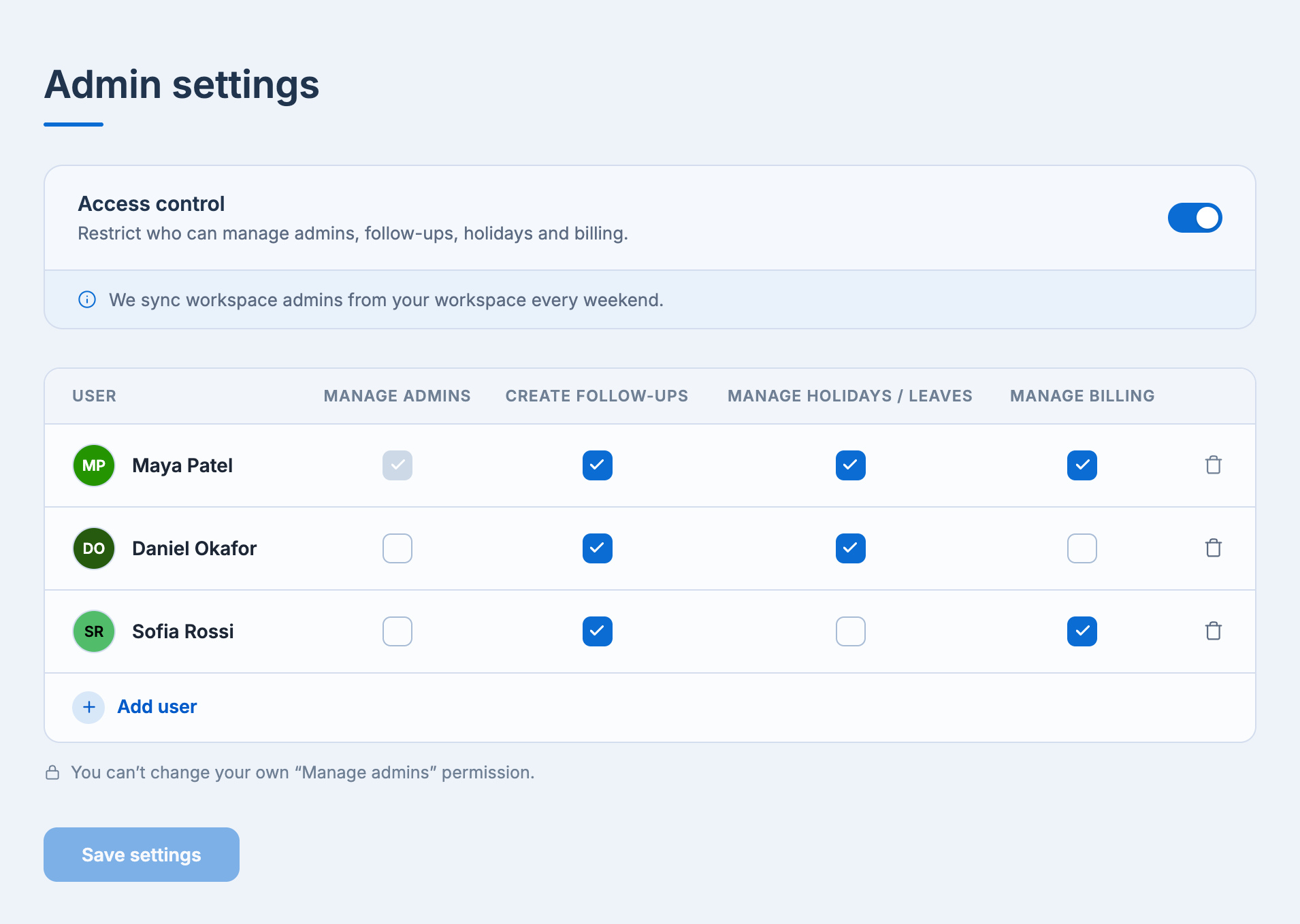
Turn on access control
Turn on Access control. The admins table appears.
Select Add user and pick someone under Select member. A new admin starts with every permission ticked.
Untick the permissions they shouldn't have.
Select Save settings.
Keep yourself in the list with Manage admins ticked. If you don't, Sup! warns you with You are not an admin: once access control is on, you'd lose the option to manage settings. Select Enable access control only if that's what you want.
Permissions
| Permission | What it allows |
|---|---|
| Manage admins | Open the Admin tab, add and remove admins, and change their permissions |
| Create follow-ups | Create, duplicate and delete follow-ups. See Who can create, view and edit |
| Manage holidays / leaves | Act as a holiday admin in the Leave Tracker. Only on plans with leave tracking. See Who can do what |
| Manage billing | Manage the workspace's plan under Billing |
Everyone in the admins list can also open the Workspace and Mood tabs.
Some ticks can't be changed:
- You can't change your own Manage admins permission.
- At least one person has to keep each permission, so the last tick in a column is locked.
Remove an admin
Select the bin at the end of their row, then Remove. The change is saved straight away.
You can't remove yourself, or the last person who holds a permission.
Turn off access control
Turn off Access control and select Save settings. Everyone in the workspace can manage all of Sup!'s settings again.
People without access
People who aren't admins see You don't have permission to access this page. on the admin-only tabs, and a Permission needed dialog when they try something only admins can do. Both offer Request admin access, which asks your admins to give them access.