 Sup!
Sup!Forms
Share and pin a form
Send a form to a channel or to people, copy its link, or pin it where people can find it.
Share a form
Open the form and select Share (it's also the last step of creating a form).
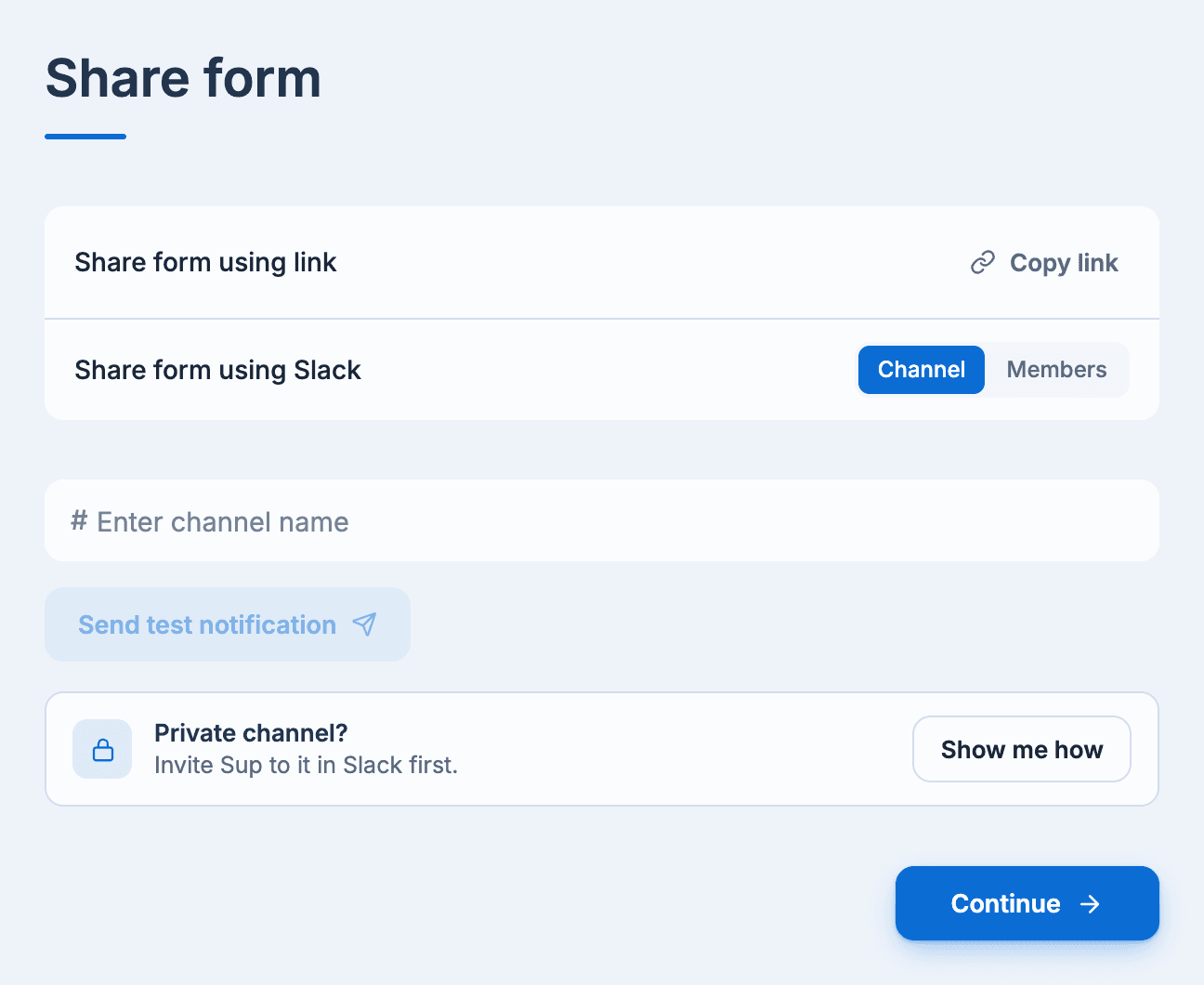
- Share form using link: select Copy link and paste it anywhere. The link opens the form in the dashboard.
- Share form using Slack (or Teams): choose Channel or Members, pick where it goes, and select Continue.
Sup! posts a message saying who created the form and asking people to fill it in, with a Fill out form button. For anonymous forms, the message says responses are anonymous.
Only active forms can be shared.
Pin a form
Pinning keeps a form one click away, without sending a message. Open the form and select the pin icon (Pin this form to Slack home & Dashboard). A pinned form appears:
- in the Pinned forms section of the Sup! app's Home tab in Slack or Microsoft Teams,
- in Pinned forms on the dashboard's home page.
Select the pin icon again to unpin it. Deactivated forms drop out of the pinned lists.