Sup!
Sup!Fill out a form
For members, how to fill out a form right in Slack or Microsoft Teams, and how to edit your response.
You fill out a form where you already work: select Fill out form on the message Sup! sends to your channel or your direct messages.
Fill it out in Slack or Microsoft Teams
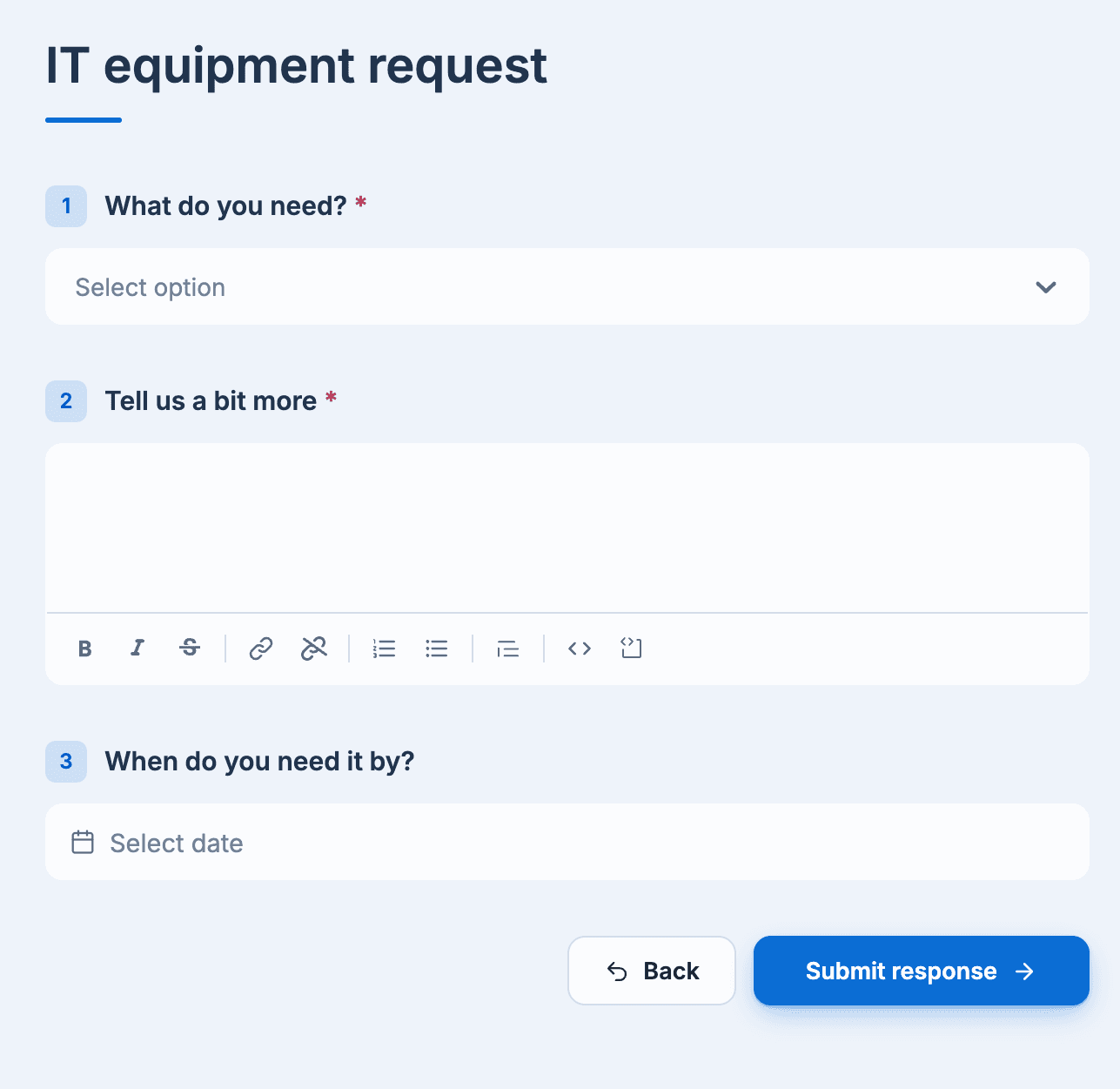
- Select Fill out form. A dialog opens with the form's questions.
- Answer the questions. Optional questions say so.
- Select Submit.
Afterwards, Sup! sends you "Thank you for submitting your response for (form name)." with an Edit response button. If the form posts to a channel, your response appears there too, under your name, or as anonymous if the form is anonymous.
If the form is no longer active, or you've already answered a form that takes one response per person, Sup! tells you instead of opening the form.
Pinned forms
Forms your team uses often may be pinned. Open the Sup! app's Home tab in Slack or Microsoft Teams and look under Pinned forms. Each pinned form opens in the dashboard.
Edit your response
Select Edit response on Sup!'s thank-you message, or Edit on your response in the dashboard. Change your answers and select Update response. If the form posts to a channel, the post is updated.
You can't edit a response after it has been approved.
Alternatively, fill it out from the dashboard
You can also answer from the Sup! dashboard:
- On the dashboard's home page, select Respond next to a form under Pinned forms.
- Open a form's shared link.
- Open the form and select Add response.

Answer the questions, then select Submit response.