 Sup!
Sup!Create a form
Set up a form's details, where responses go, and its questions.
Anyone in the workspace can create a form when your plan includes forms.
Start a new form
In the dashboard, select Forms, then Create form. Pick a template card to start from its name and questions, or select Create your own to start blank.
Details
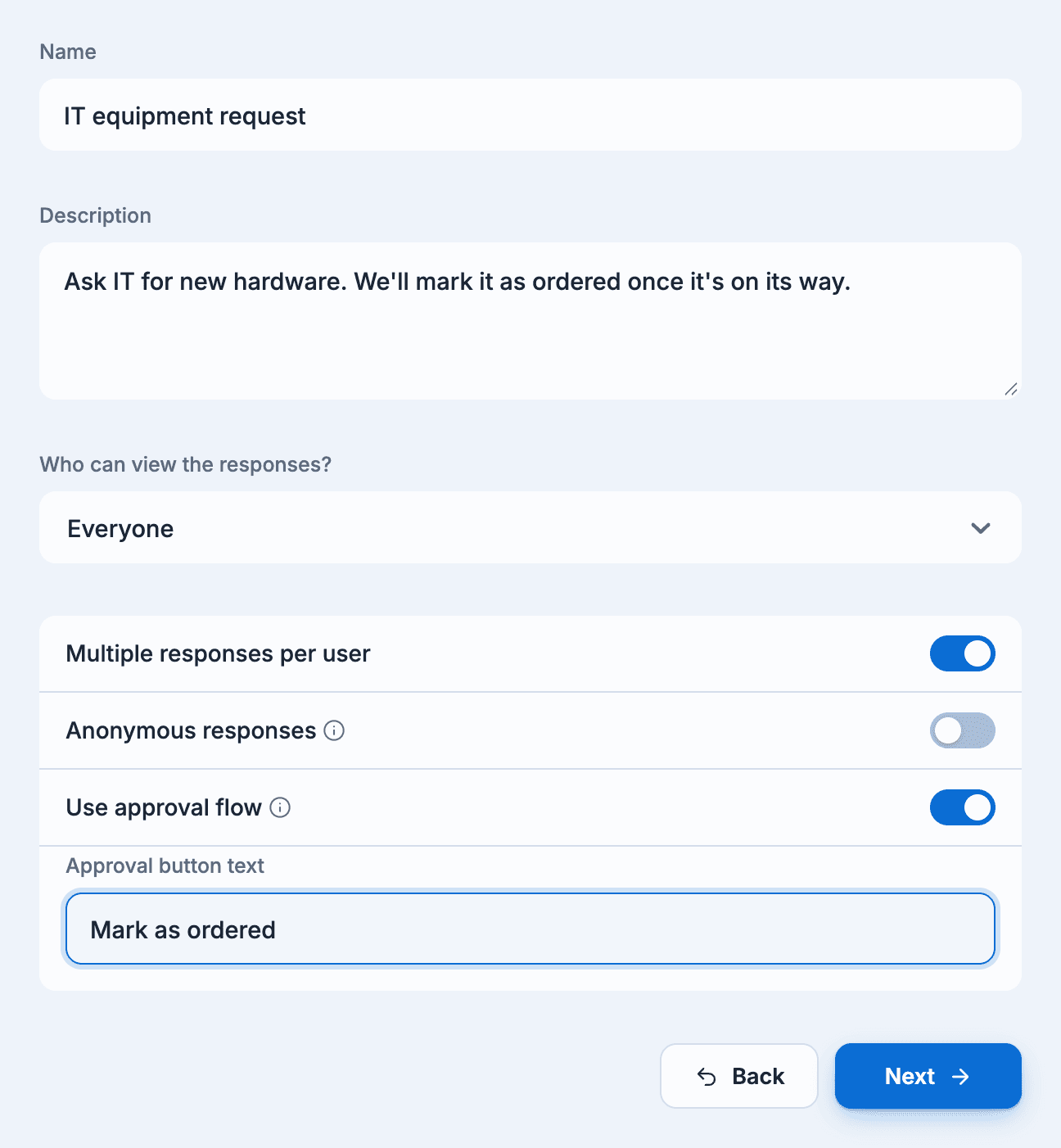
| Field | What it does |
|---|---|
| Name and Description | Shown to people filling in the form. The description is optional. |
| Who can view the responses? | Everyone in the workspace, or Only me. With Only me the form has no channel, and you can turn on Notify yourself when response is submitted. |
| Multiple responses per user | Off: each person can answer once. On: people can submit as often as they need, for example one request per item. |
| Anonymous responses | Hides who answered, everywhere: the dashboard, the channel and reports. You can only set this when you create the form; it can't be changed later. |
| Use approval flow | Adds a button to each response so you can mark it done. Set its label in Approval button text, for example Mark as ordered. See Approvals. |
Notifications
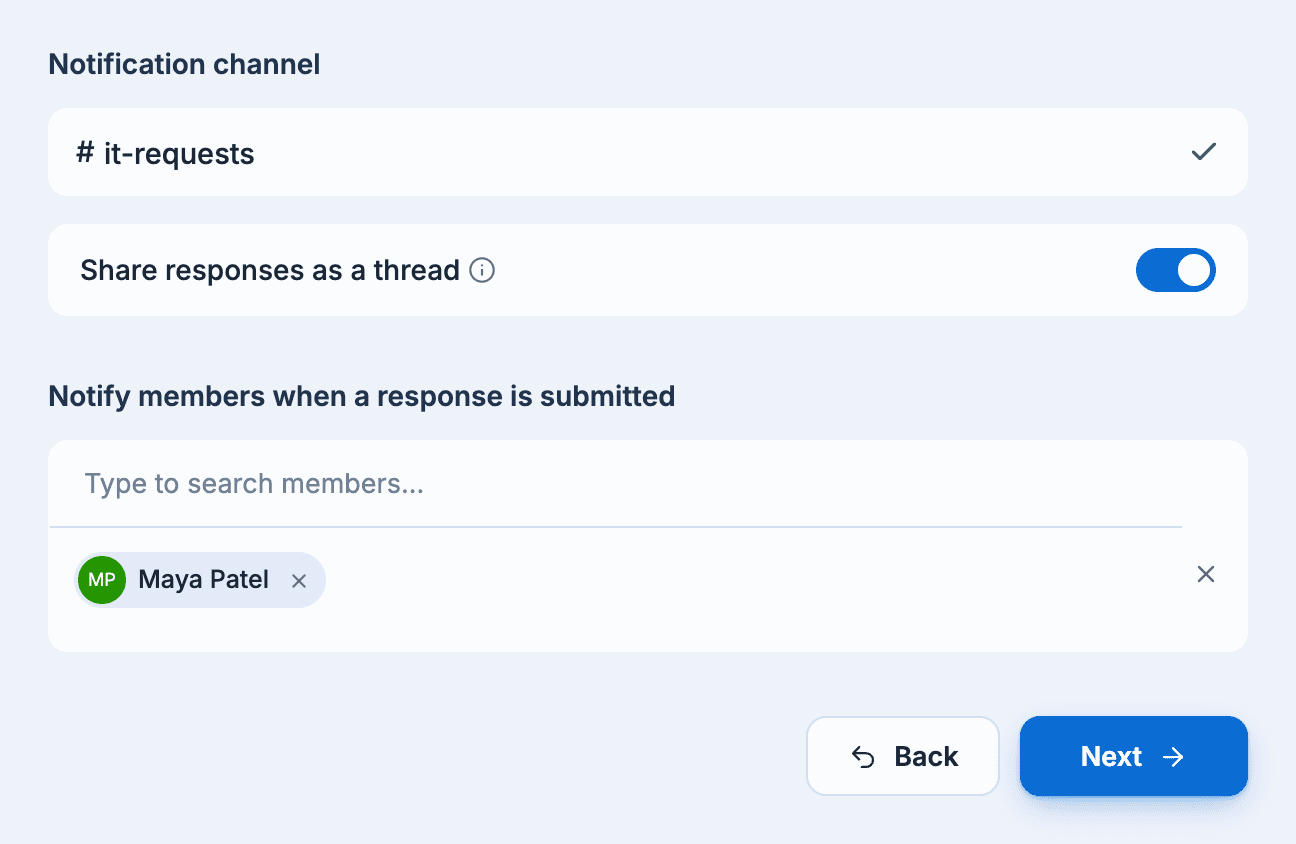
- Notification channel: Sup! posts each response to this channel. It's optional.
- Slack: type the channel name and select Send test notification. Sup! has to be in the channel; for a private channel, select Show me how.
- Microsoft Teams: pick the channel from the list.
- Share responses as a thread: collect responses in one thread instead of separate messages. On by default once you pick a channel.
- Notify members when a response is submitted: these people get a direct message with each new or edited response.
Forms that only you can view skip this step.
Add questions
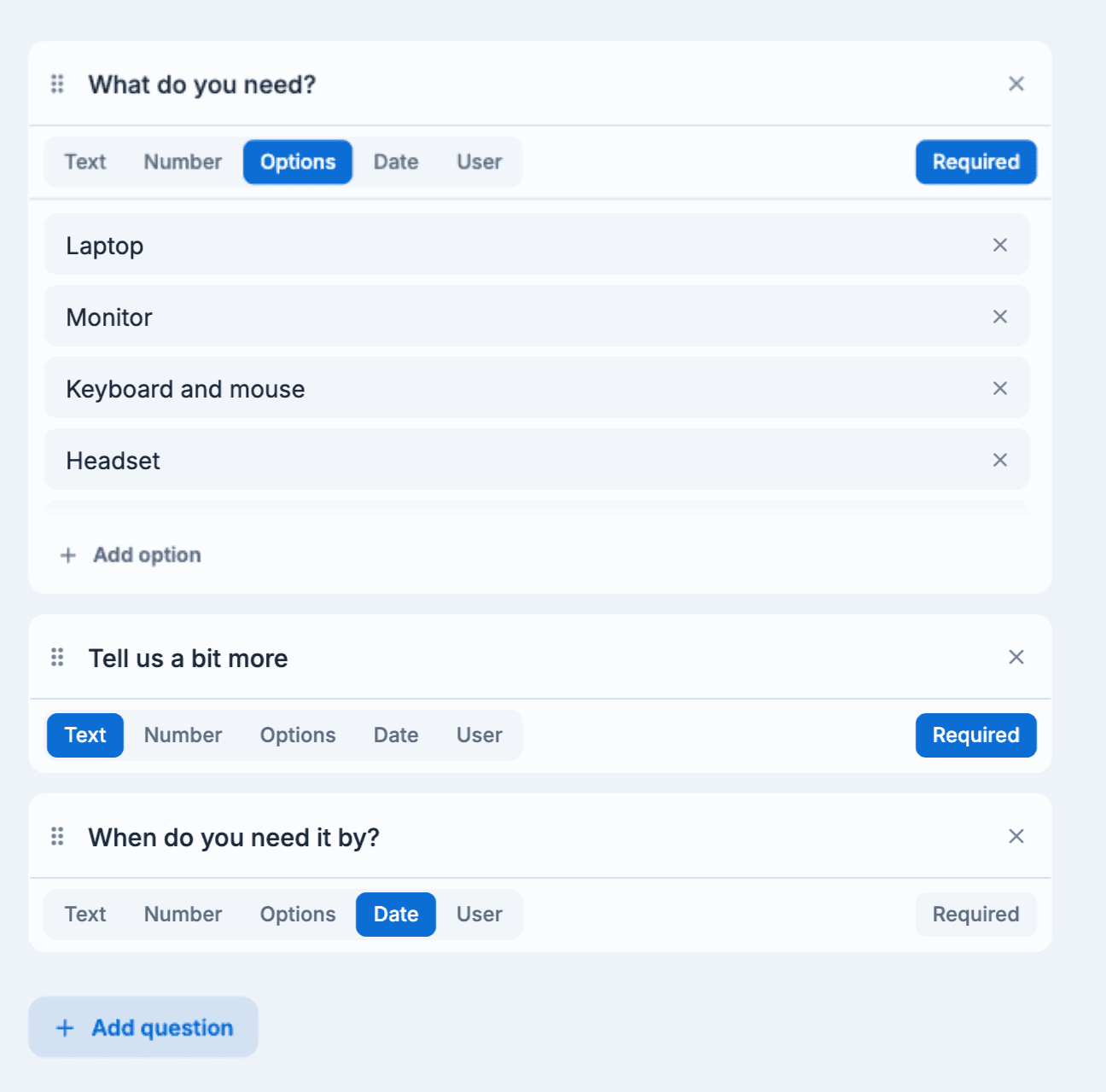
The form starts with two required text questions. For each question, pick an answer type: Text, Number, Options, Date or User (a person in your workspace). Turn Required on for questions people must answer. For Options, list the choices and use Add option for more.
Drag a question to reorder it, use Remove question to delete it, and Add question to add one at the end. Then select Create form.
Share form
The last step lets you send the form out straight away. See Share and pin a form. Select Continue to finish; you can share it later too.