 Sup!
Sup!Responses, approvals and reports
Read a form's responses, mark them done with the approval flow, and download them.
Open the form from Forms. The Responses tab lists every response as a card, newest first, with a Details panel beside it.
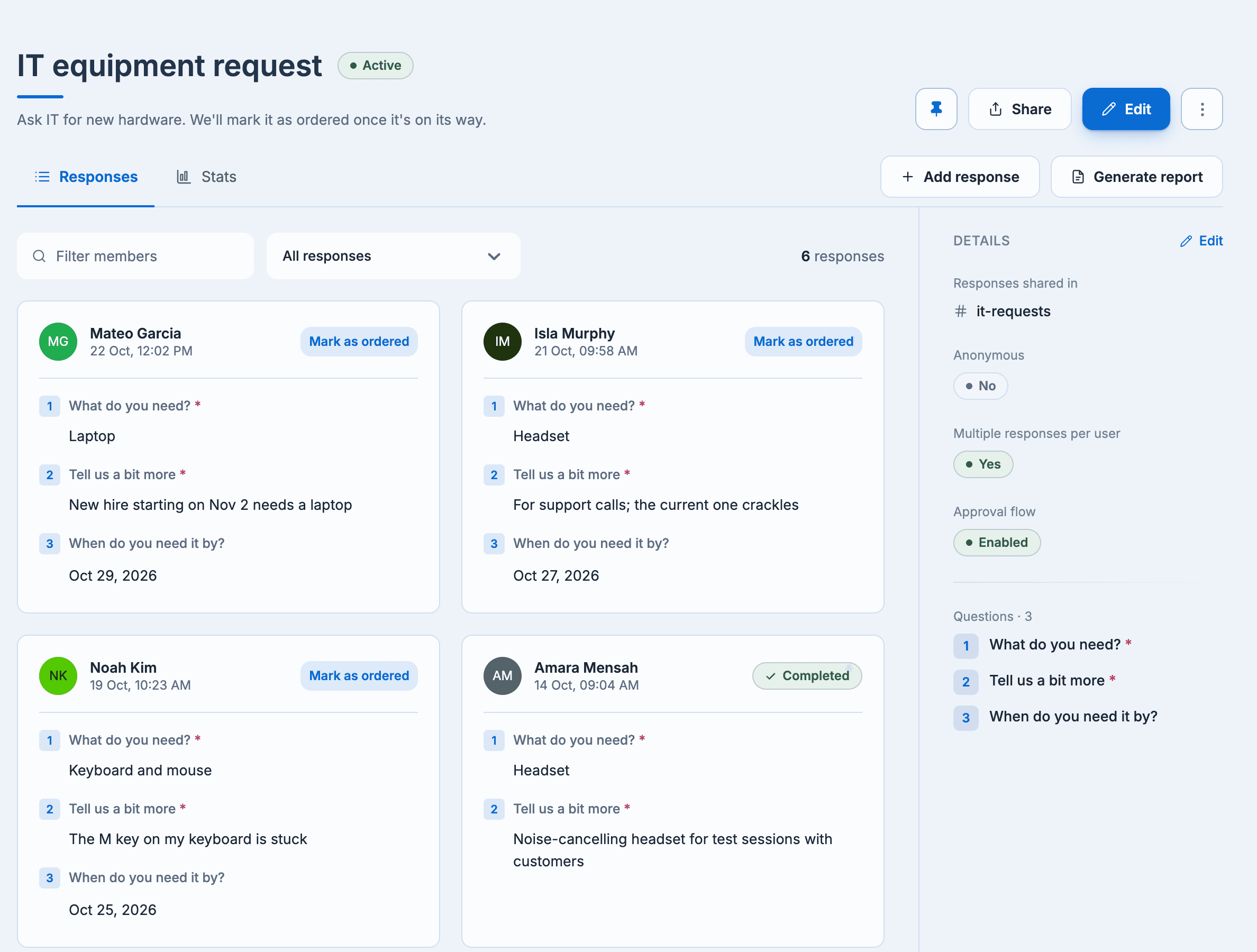
- Filter members shows responses from particular people. Anonymous forms don't have it.
- With an approval flow, filter by All responses, Approved responses or Non-approved responses.
- Select a card to open the response on its own page, with who submitted it and when.
The Details panel shows the channel responses go to, whether the form is anonymous, whether people can respond more than once, the approval flow, and the questions. Select any of them to edit it.
Approvals
If the form uses an approval flow, each response has a button with your approval text, for example Mark as ordered. Select it and confirm.
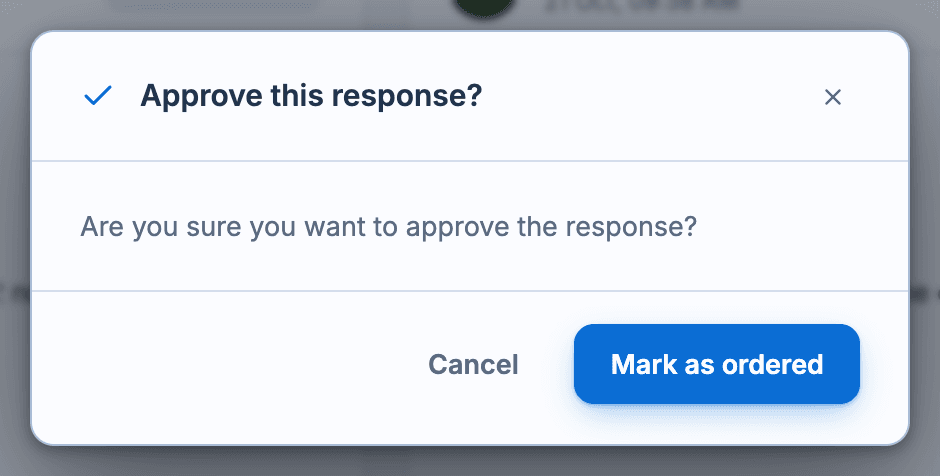
The response then shows Completed, and the person who submitted it gets a direct message saying it was approved, with a View submission button. Approved responses can't be edited.
Approving is one way: there's no reject or undo.
Notifications
Depending on the form's notification settings:
- each response is posted to the form's channel, in a thread if threads are on, and updated when it's edited;
- the people you chose get a direct message, "New submission on the (form) form." or "Submission updated on the (form) form.", with a View response button.
Stats
The Stats tab collects the answers question by question: a list of answers for text, number and date questions (with a Total when all answers are numbers), the people picked for user questions, and a chart for options questions.
Generate a report
On the Responses tab, select Generate report. The form downloads as an Excel file,
<form name>.xlsx, with one row per response: who submitted it (or User on anonymous forms),
the date, and a column for each question. Optional questions are marked (optional).
Questions you've since removed are included, so no answers are lost.